

Troubleshooting
Settings issues
Most settings incidents come from a setting someone enabled and nobody remembers, or one everybody assumes is on but is not. This page lists the settings most often misunderstood and how to verify their real state.
Settings cards are permission-filtered and many actions are filtered again by state. Seeing a page without an edit action does not prove a product defect.
Role and access: an administrator checks effective permission; users do not expand their own scope. Start with Open settings. For specialist checks, use Open labour rules or Open approval workflows.
View the related Settings screens4 images
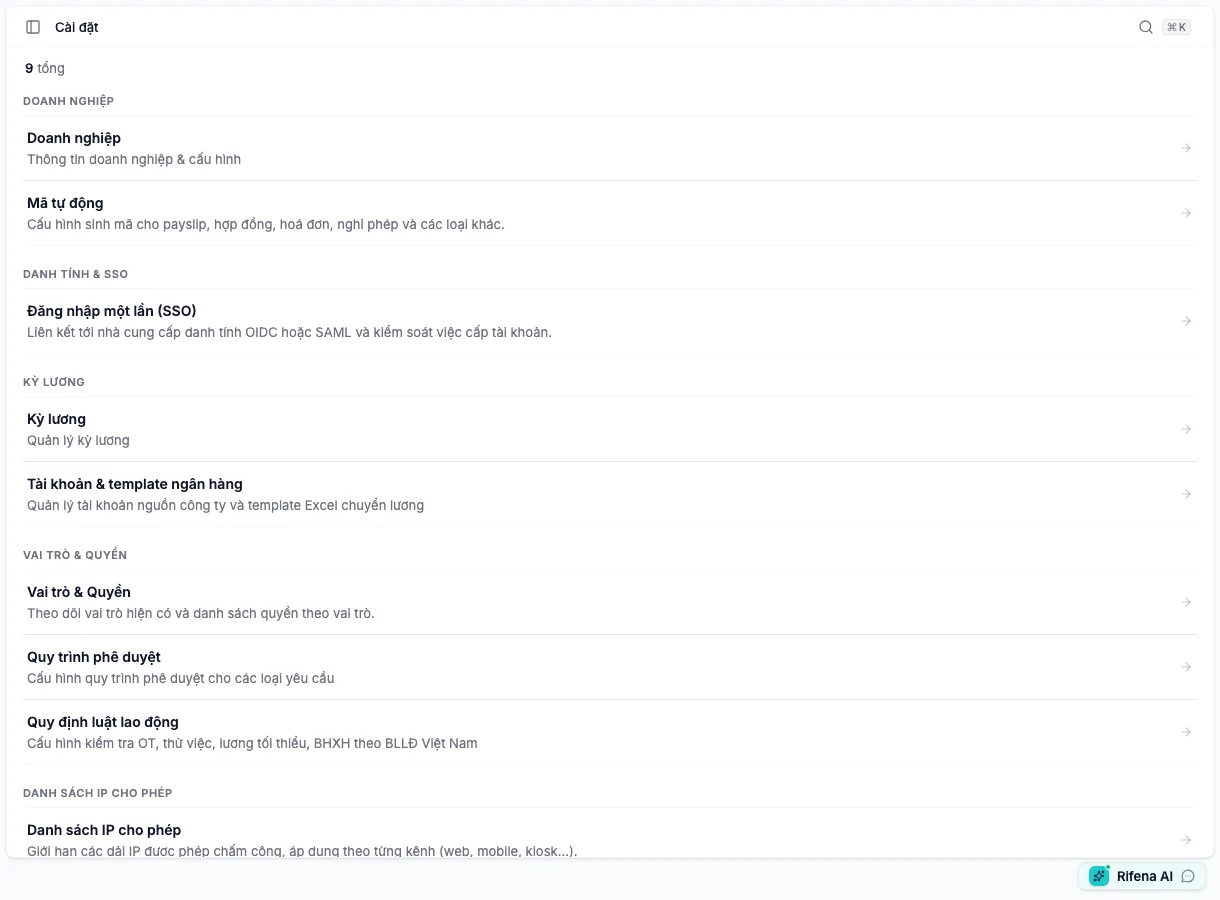
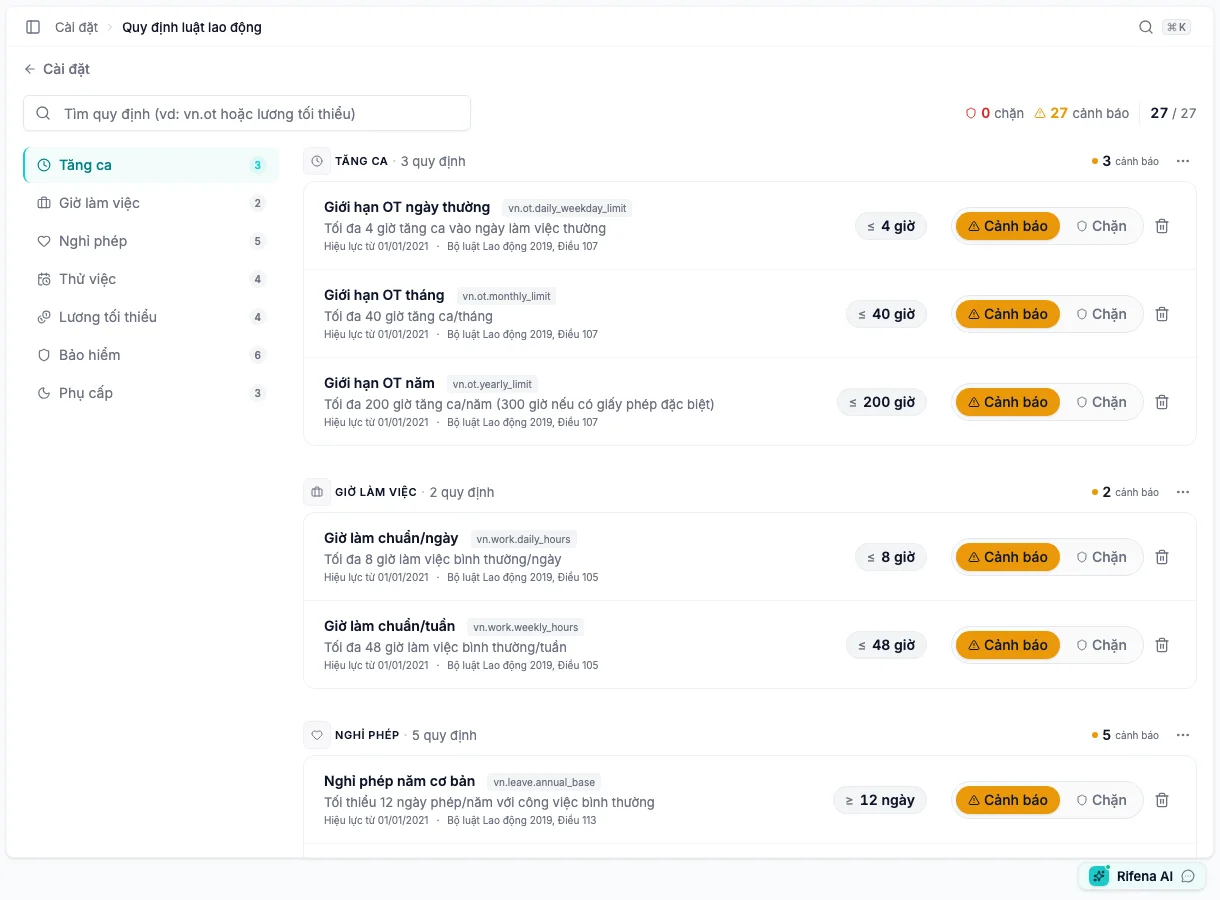
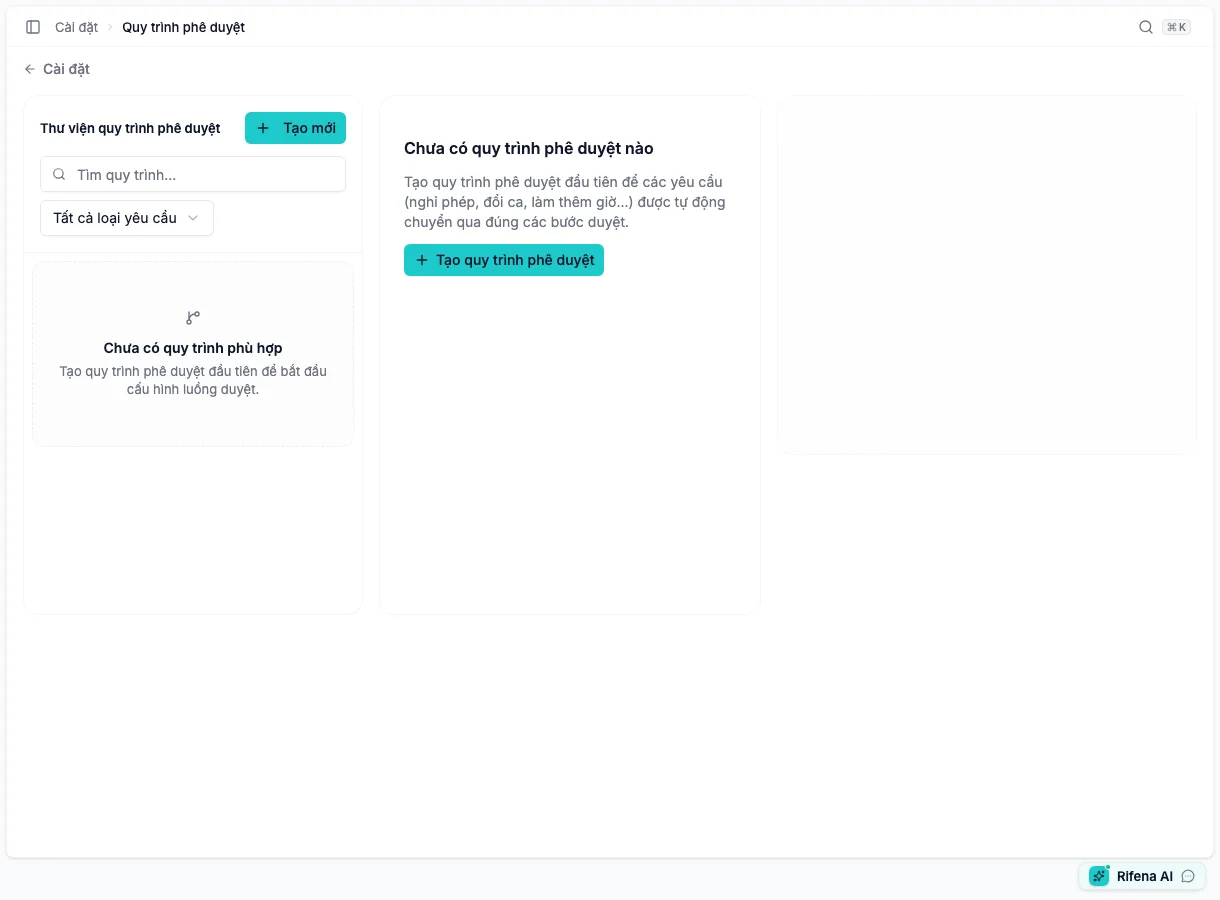
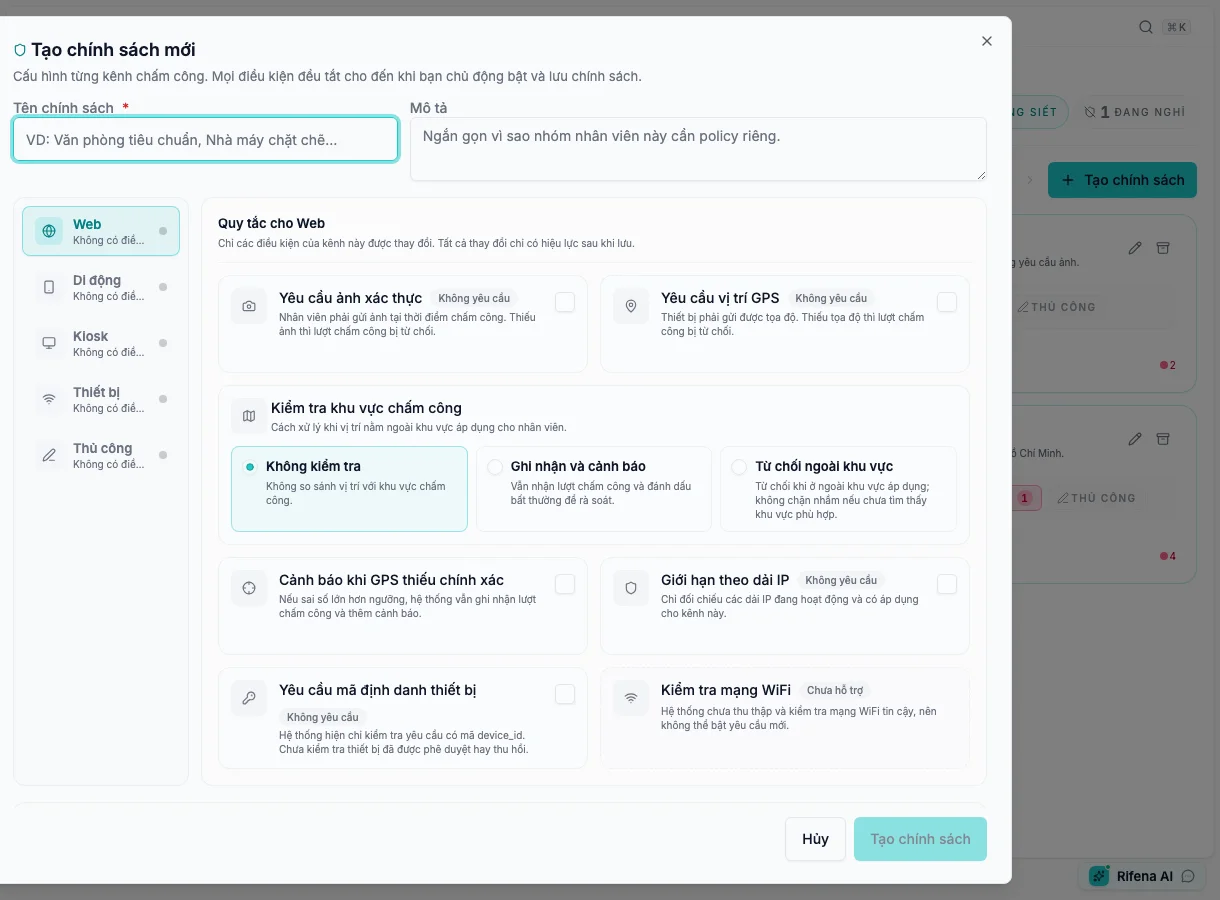
A Open settings card is missing
- Selected organisation.
- Active role/assignment.
- Whether permission is administration or self-service.
An administrator checks effective permission and scope under Open roles and permissions, then the user refreshes their session. Do not type the URL to bypass navigation.
Expected result: required cards appear and unrelated cards remain hidden.
Still blocked? Provide card, role, scope and assignment time.
An Open clock policies cannot be created or saved
- The account has policy-management rather than view-only access.
- The policy name is present; the system Default name is intentionally locked.
- An enabled GPS-accuracy warning uses a valid positive whole number.
- At least one field or requirement has really changed and no background request is still pending.
Review every channel on the left, correct the field showing an error, then read the requirement summary. Save only when the action is enabled. To leave a dirty editor, use its discard confirmation instead of reloading the page.
Expected result: a new policy appears in the list; an edited policy advances to its next version while preserving previous history.
Still blocked? Provide channel, invalid-field label, save-button state, and visible message without real coordinates, IP ranges, or verification photos.
Open automatic codes counter will not reset
- A reason is entered.
- Configuration is active.
- Next code does not collide.
- Reset cycle inferred from pattern is correct.
Select a non-colliding next value or verify and edit the pattern. Do not delete old records or bypass collision protection.
Expected result: reset is stored with reason and preview shows an unused code.
Still blocked? Provide code type, preview and collision message without sensitive records.
Open bank configuration has no Preview
- Valid .xlsx uploaded.
- The intended worksheet is first and the data-start row is correct.
- All four mappings exist: unaccented name, recipient account, amount and transfer narrative.
- Template management permission.
Move the intended worksheet first, reopen the builder and complete missing mappings. The current wizard does not switch worksheets; Preview appears only when required inputs exist.
Expected result: headers, column order and sample rows align.
Still blocked? Provide bank, worksheet and missing-column names; never full account numbers.
Approval workflow saves but will not activate
- At least one step.
- Every step resolves an approver source.
- Conditions and timeout handling are valid.
- Readiness blockers.
Keep the workflow Off. Open the summary beside its name, select the affected step, then correct and save it. Resolve blockers before activation; review warnings according to their specific message. Do not use no-match auto-approval to bypass a required human decision.
Expected result: Active workflow sends a test request to the correct recipient.
Still blocked? Provide definition name, step count and non-sensitive readiness text.
Adding a step reports an error or leaves it in the wrong position
- Whether the message reports a blocked step, a changed position, or an unconfirmed save.
- Reload once and read the saved sequence, including its last step.
- Whether the new step already exists and the workflow is still Off.
If the position changed, reload the workflow and select the insertion point again. If the save is unconfirmed, check whether the step exists before adding it again. When validation blocks an insertion, neither the new step nor the new order is saved. Keep the workflow Off while addressing the reported error. If the final step cannot complete automatically on timeout, review timeout handling and the following approval step with the process owner; do not remove the need for a human decision merely to dismiss the error. Activate only when the saved sequence is correct and has no blockers.
Expected result: each step appears once in its intended position and retains that order after a reload.
Still blocked? Stop adding or reordering steps. Give an administrator the workflow and step names, intended and saved positions, and exact message. Redact employee details from any attached image.
Add Open labour rules is missing
- Manage versus view-only access.
- All library rules already applied.
- Category/effective-date filter.
Clear filters and review the library. If all rules are applied, change mode on existing rows; do not create duplicates.
Expected result: the action appears only with an available rule and management access.
Still blocked? Provide rule category and current role.
Open single sign-on saved but employees cannot sign in
- Configured versus Active.
- Connector-not-live warning.
- Enforce SSO is unavailable.
Keep Rifena-account sign-in. The current external OIDC/SAML connector is not live; escalate activation to the identity team and do not enforce SSO.
Expected result: users retain a safe current sign-in path; external configuration is not advertised as active.
Still blocked? Send only state and non-sensitive error text; never secrets or private certificates.
An Open IP allowlist change blocked clocking
- The effective policy requires IP.
- Affected Web/Mobile/Kiosk/Device/Manual source.
- An Active range applies to that source and matches the observed address.
Sign in to administration normally, correct or reactivate a verified range, or narrowly pause the IP requirement under change control. The allowlist does not control sign-in; do not open an overly broad CIDR.
Expected result: the valid clock source records an event and the outside source remains blocked.
Still blocked? Ask network administration to inspect VPN, proxy, IPv4/IPv6 and CIDR.
See Settings map and Access and notification issues.
Hand off when the issue remains blocked
Give the Settings owner the card name, screen path, role, scope, state, and visible message. Mask account numbers, secrets, private certificates, and employee data before attaching an image.