

Guide
Approval workflow builder
In many organisations a leave request or a payroll run is approved over chat, and nobody knows for sure who agreed when. Rifena turns approval into a workflow you can draw: every step has approvers, a decision mode, a deadline and a rule for what happens when it runs late. Requests reach the right people in the right order, and every decision leaves a trace.
After this guide you can build an approval workflow from draft to activation: pick the request type, set applicability conditions, add and order steps, choose approvers, set deadlines and escalation, and know where the system keeps you safe.
What the builder can do
- Build a dedicated workflow for 11 request types: leave, overtime, payroll run, payment, shift change, tax exemption, component override, HR event, advance, expense claim and KPI score.
- Decide which workflow applies through conditions on the request data and a priority order.
- Add as many steps as needed, insert steps in the middle, drag to reorder.
- Choose approvers by specific person, role, position, direct manager, department head or a participant of the request.
- Settle each step with any one person, everyone or a majority.
- Set skip conditions, a processing deadline, escalation on timeout and delegation.
- Read the readiness state with blocking errors and warnings before activating.
Without the module, requests are still approved through Rifena’s default approval. See Service plans and default approval.
Screen layout
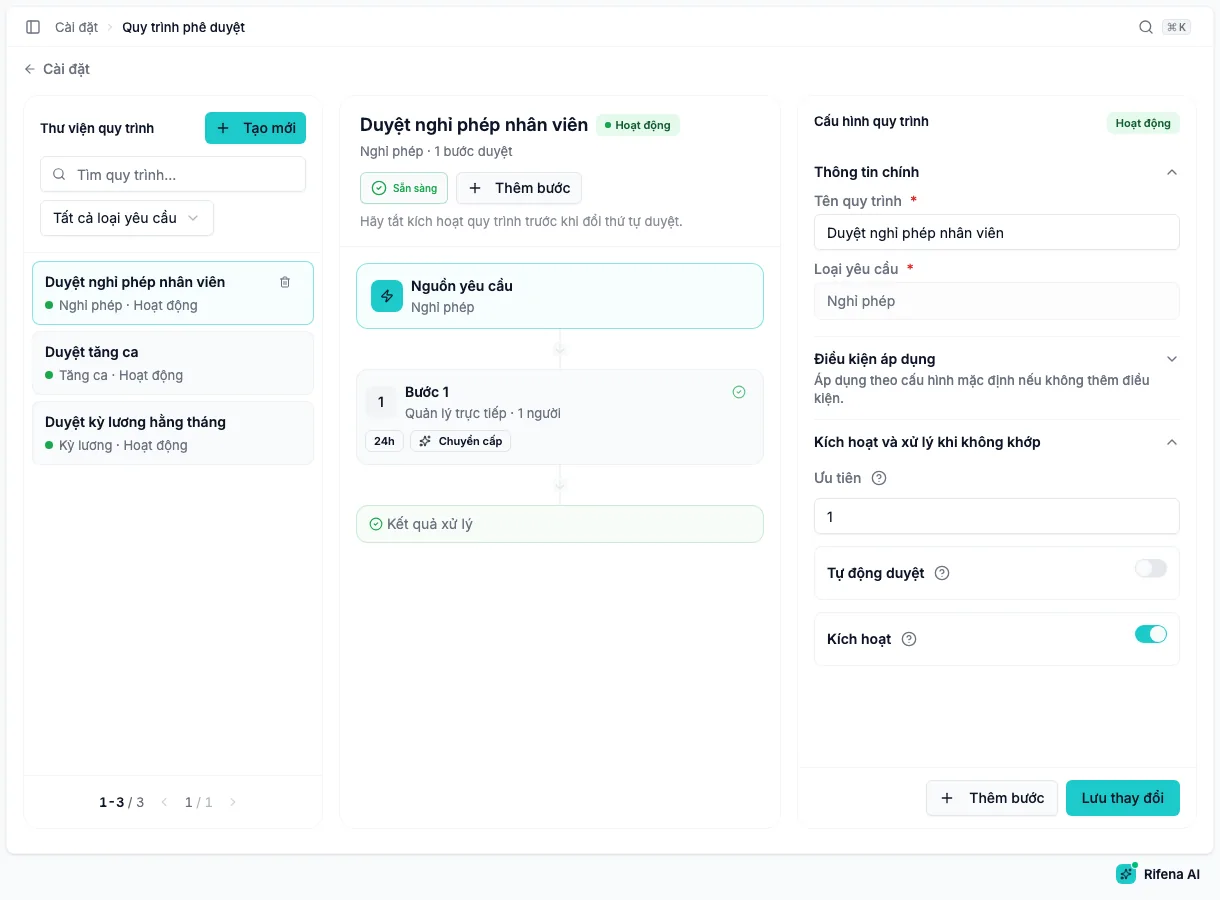
- Workflow library on the left: search by name, filter by request type, paginate and New. Each card shows the request type and the Active or Off state.
- Diagram in the middle: Request source with its applicability conditions, the step cards and the Outcome. The diagram offers Add step, Settings and Activate workflow.
- Editor on the right: settings of the selected workflow or step, each section with its own save button.
On small screens the three areas appear one at a time; use Back to return to the diagram or the library.
Creating a workflow
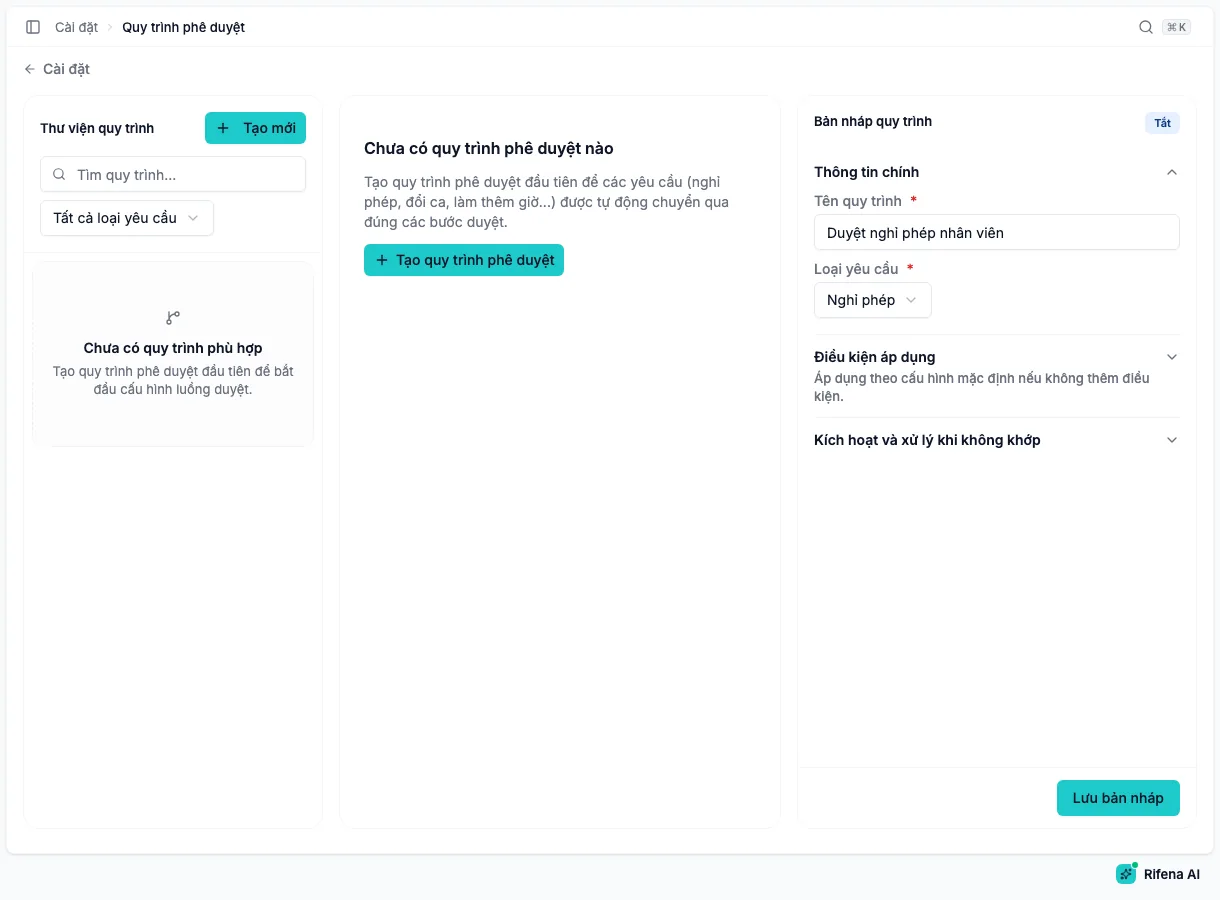
- In the library choose New. The Workflow draft panel opens.
- Enter the Workflow name and choose the Request type.
- Set the Priority: a higher number is evaluated first when several workflows share a type; on a tie the older workflow is evaluated first, and the system picks the first one whose conditions match.
- Add applicability conditions if the workflow is only for some requests, see below.
- Choose Save draft. The workflow appears in the library labelled Off.
A new workflow always starts Off until you activate it, so you can build it gradually without affecting running requests.
Workflow settings and applicability conditions
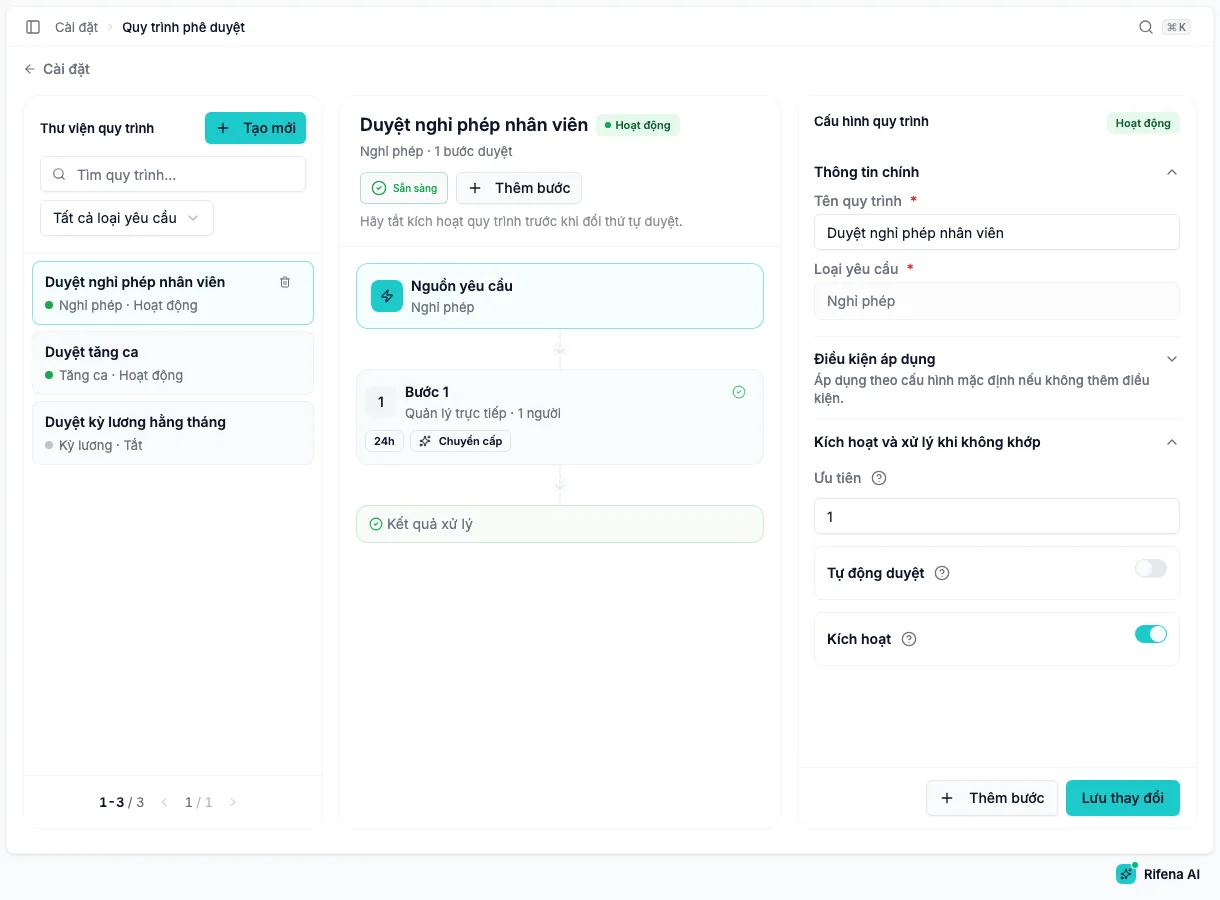
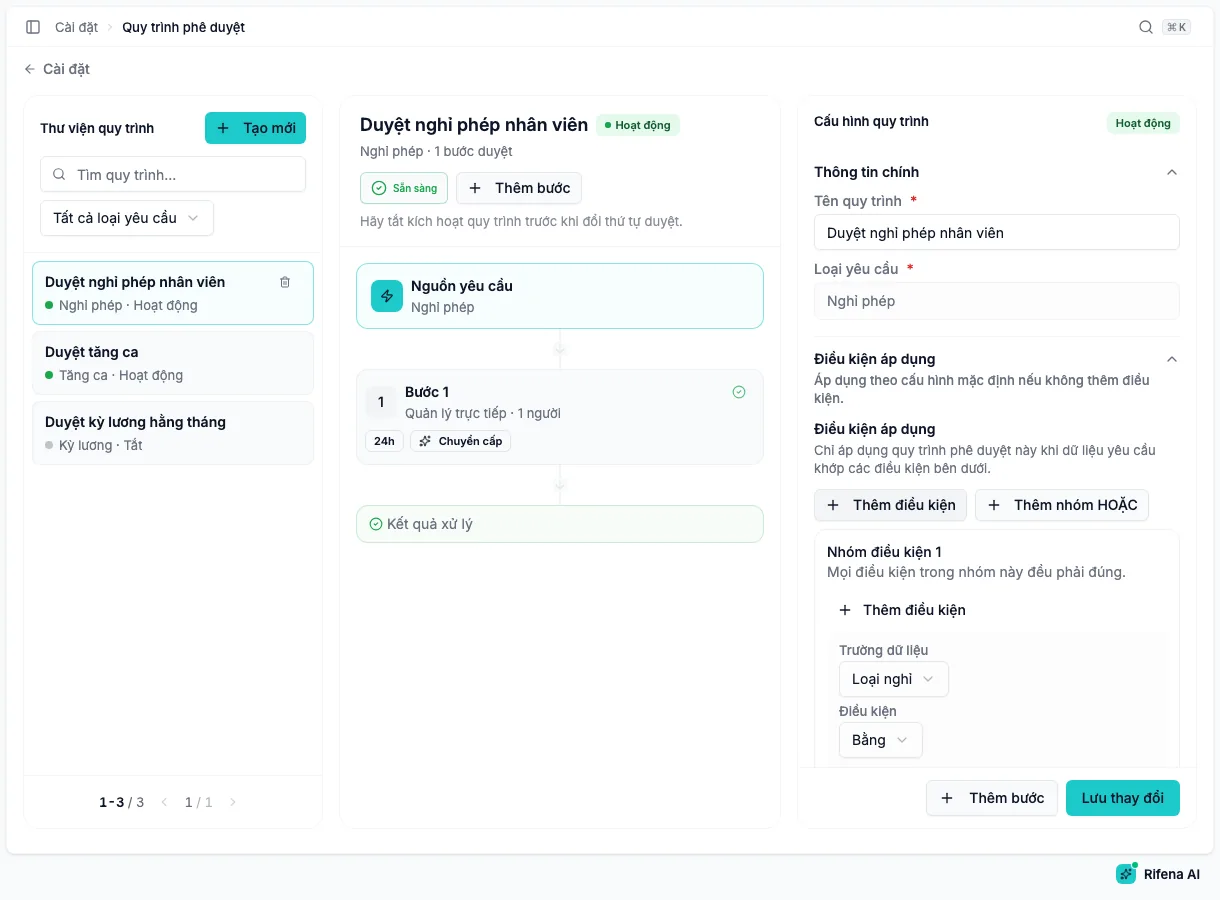
The Workflow settings panel appears on the right when you open a workflow without selecting a step; while a step is selected, Settings on the diagram brings it back. It has three sections:
- Main details: name, request type and priority.
- Applicability conditions: Add condition adds a row with a Data field, a Condition and a Value; Add OR group opens another condition group.
- Activation and unmatched handling: the Active switch and Auto-approve when a request matches no condition.
Data fields change with the request type, for example leave type and start date for leave, hours for overtime, amount for advances or expense claims, old and new department for HR events. Operators include equals, not equal, greater than, less than, greater or equal, less or equal, in and not in.
An incomplete condition group or two duplicate conditions in one group cannot be saved. Check which conditions can hold at the same time with real data before activating.
Adding and configuring approval steps
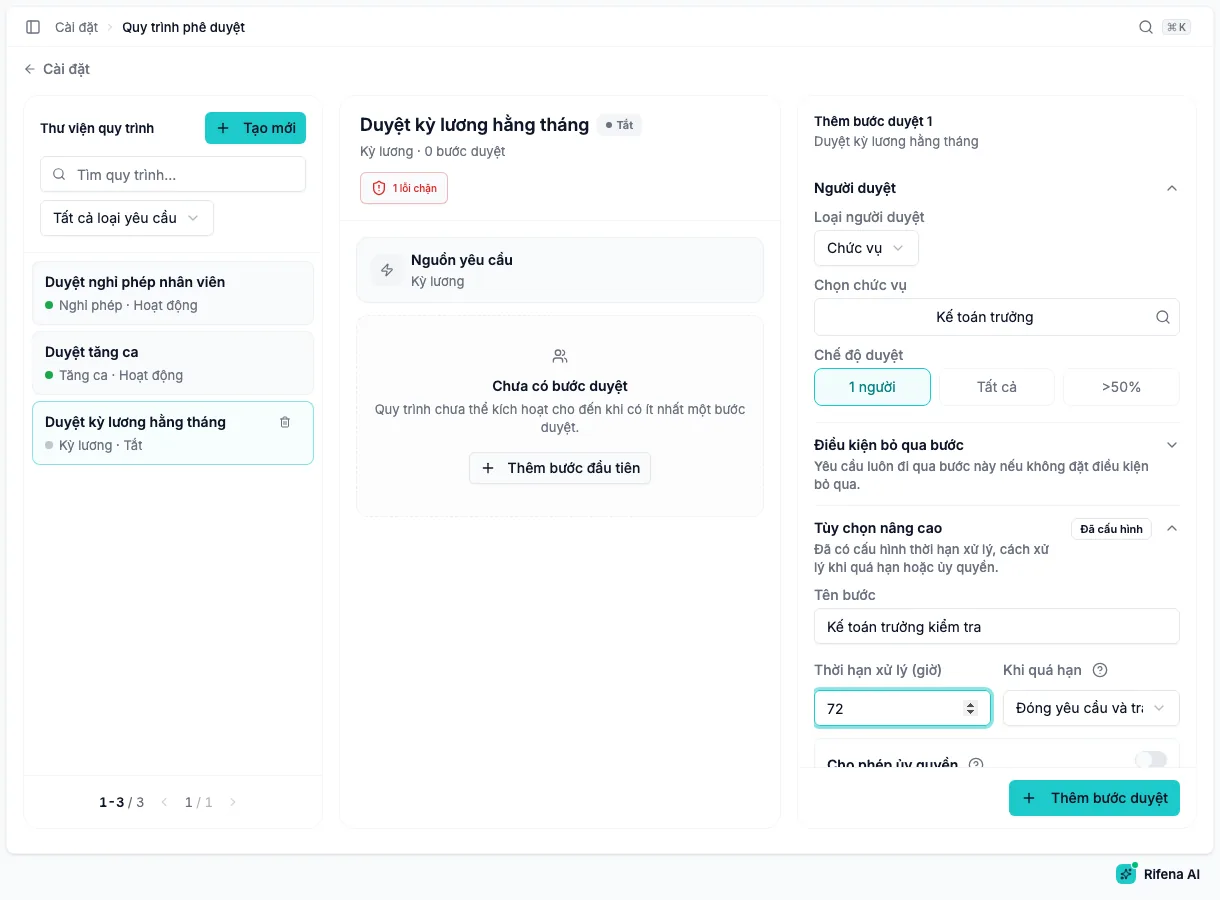
Choose Add first step or Add step on the diagram, configure it and choose Add approval step. For an existing step, select its card, edit and choose Save approval step.
Approvers
| Approver type | When to use | What to check |
|---|---|---|
| Direct manager | Approval follows the reporting line of the employee in the request | The manager relationship exists on the organisation tree |
| Department head | Approval by the employee’s department | The department has a manager |
| Role | Anyone holding the role may approve | Who holds the role, including through positions or groups |
| Position | The person holding a specific position | The right position and its current holder |
| Specific person | One fixed person | The person is active and allowed to approve |
| Request participant | Shift changes only: source employee, target employee, covering employee, initiator or subject | The exact participant the step should rely on |
Shift changes also offer Manager of the request participant and Department head of the request participant. For approvers that depend on request data, Rifena resolves the recipient when the request is submitted; test with a representative request.
Decision mode
| Mode | The step completes when |
|---|---|
| Any one | One eligible approver agrees |
| All | Every approver of the step agrees |
| Majority (>50%) | More than half agree |
Skip condition
The Skip condition section uses the same condition builder: when the request matches, the step is skipped. Without a condition the request always passes through the step.
Advanced options
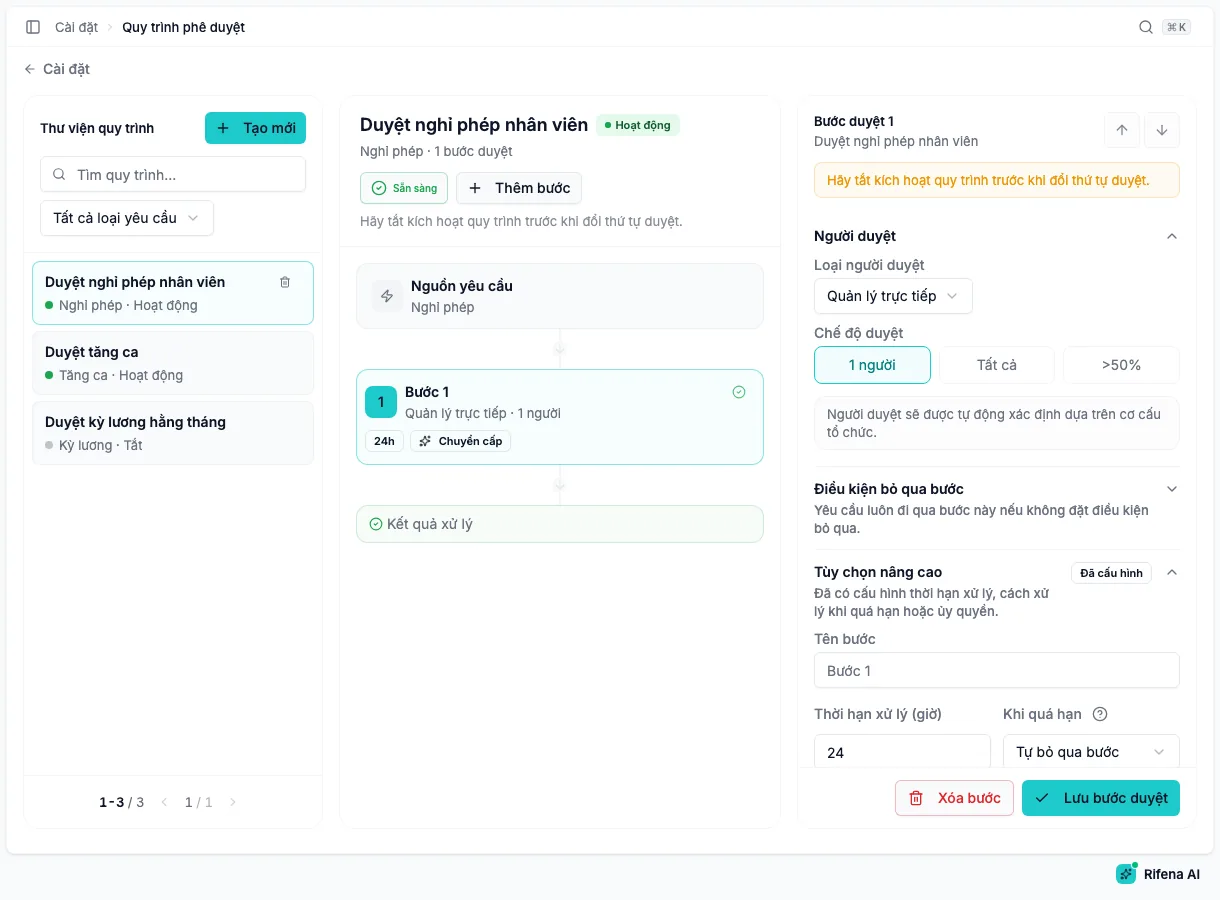
- Step name: shown on the diagram and in the action history.
- Processing deadline (hours): a whole number of hours; leave empty for no limit. Without a deadline, a request can wait forever if every approver loses access or leaves.
- On timeout: No escalation, Escalate to an employee you select, or Skip the step. Timeout handling only runs when the step has a deadline.
- Allow delegation: the approver may hand the step to someone else; the delegate replaces them for the current step and the deadline is not extended.
Inserting, reordering and deleting steps
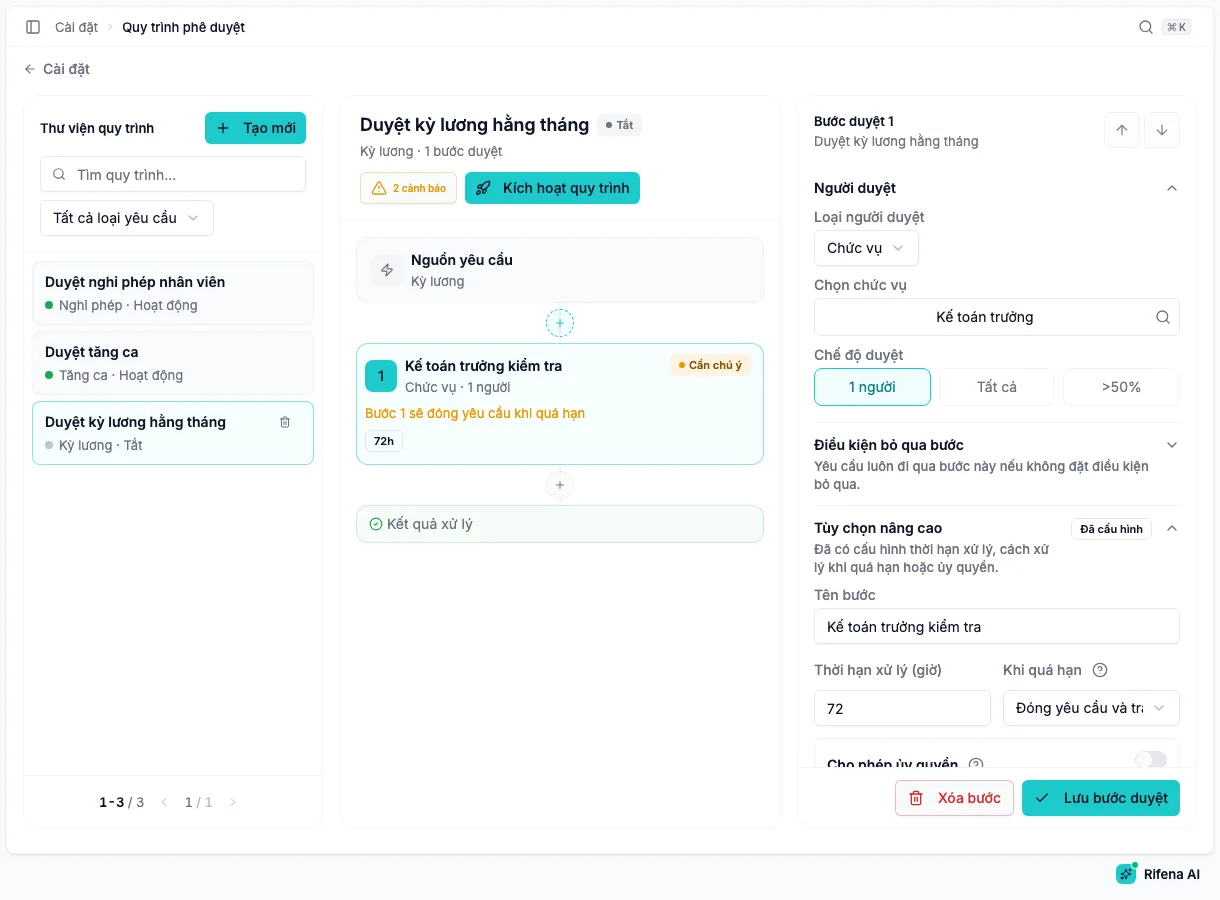
| Task | Action |
|---|---|
| Append at the end | Add step on the diagram, configure, Add approval step |
| Insert first or between two steps | The + on the connector at the target position |
| Reorder | Drag a card, or Move step up and Move step down |
| Delete a step | Select the card, then Delete step in the editor |
Insert, reorder and delete only while the workflow is Off. If the workflow still has requests in progress, Rifena refuses to reorder until they complete or are cancelled. An active workflow needs at least one step; the last step cannot be deleted while the workflow is on.
Reading readiness and activating
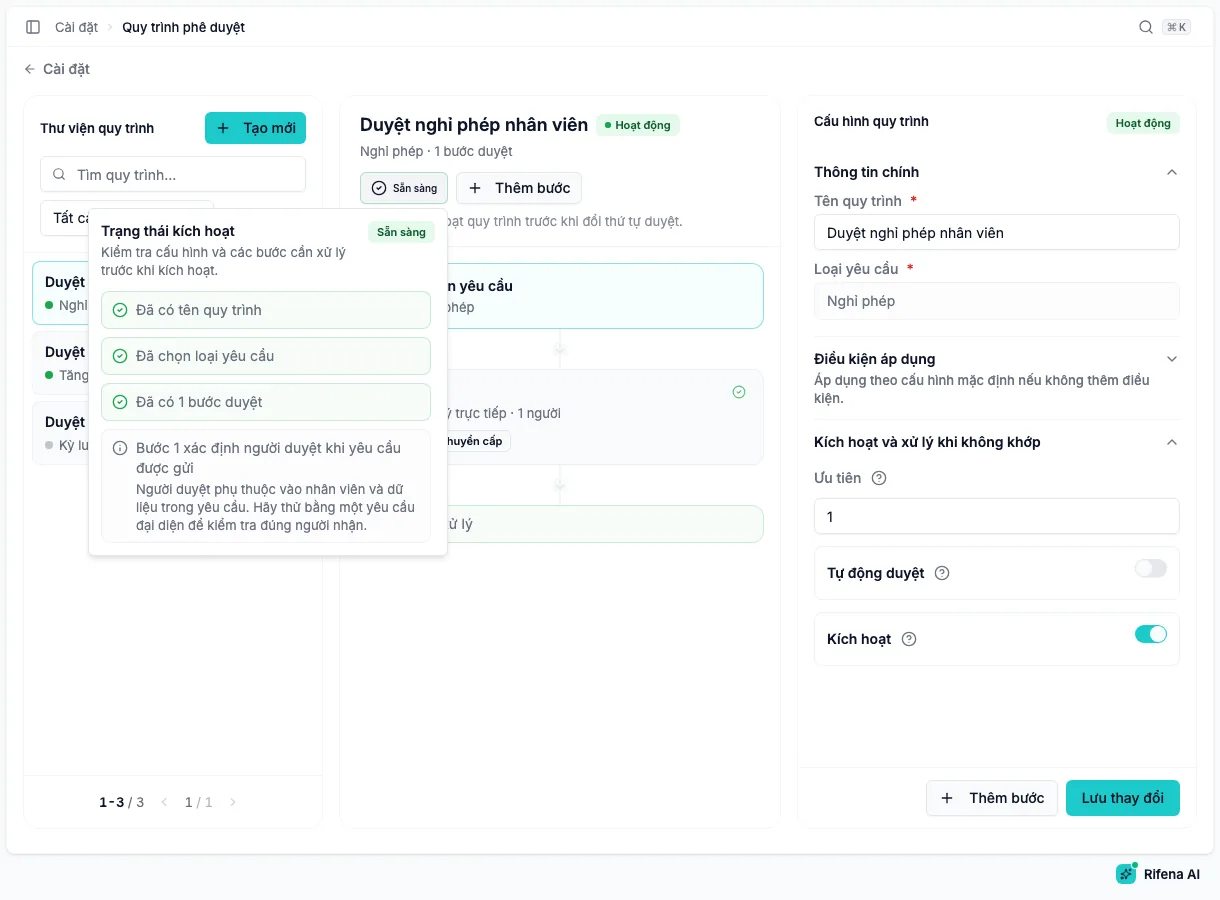
The label next to the workflow name summarises its state: Ready, Needs attention with the number of warnings, or Not ready with the number of blocking errors. Select the label to read each item.
Rules Rifena checks before activation:
- a name and request type exist, with at least one approval step;
- a step using a role, position or specific person has a value;
- timeout handling requires a deadline;
- Escalate to an employee is only valid with the Any one mode;
- the last step of a payroll or KPI workflow cannot complete itself on timeout;
- payroll and KPI workflows must start at step 1 and their recipients need approval permission in the right scope;
- request participants are only for shift changes.
When no blocking error remains, choose Activate workflow on the diagram and confirm that the label reads Active after a reload. From then on, new requests of this type follow the workflow instead of the default approval.
How a request runs through the workflow
When a request is submitted, Rifena picks the active workflow whose conditions match with the highest priority, resolves the approvers of step 1 and notifies them. Approvers act in Open approvals or directly on the business screen.
- Approve, Reject with a reason, Delegate to an eligible person, or the requester can Cancel request.
- Select several requests to approve or reject in bulk with one note.
- Approval flow shows the current step, who is pending and the next step; Action history records every decision, including system actions on timeout.
If a step finds no eligible approver, leave and overtime requests are still saved and wait for manual review; advances and expense claims require the configuration to be fixed before resubmission. On timeout without escalation, the request closes and the payroll run or KPI score returns to Draft for resubmission.
Safety and limits
- Approvers are re-checked for permission, data scope and employment status at the moment they act, not only when configured.
- Payroll and KPI workflows always require a final human decision; the system never auto-approves on timeout.
- Step order cannot be changed while the workflow is active or has requests in progress; switch it off after reviewing pending requests.
- Delegation only reaches active people with the right permission and scope; the step deadline is not extended.
- Deleting a workflow cannot be undone; an activated workflow keeps running even if the plan later loses the module, but you cannot edit it or create new ones.
- Users who can only view requests cannot open the builder; managing workflows needs its own permission.
Next
- Roles, data access and approvals to grant approval permissions before building workflows.
- Approval workflows: library and builder to look up each label on the screen.
- Access and notification issues when a request does not reach the right person.