

Guide · 8 steps
Time and attendance policies
Working time is where employees and employers disagree most often: changing shifts, public holidays, overtime, clocking in from a phone. Rifena brings every time policy into one place, in the order real operations demand, and checks it against labour law the moment data is created. The goal is a timesheet that is right by itself, not one corrected by hand at month end.
Complete when a test employee has the correct pattern and shift, can use the correct leave type, receives the intended Open clock policies and produces a visible administration result.
Role and access: use an HR or time-policy administrator with access to the small test scope. A reviewer who cannot manage rules should receive the test result rather than broader configuration permission.
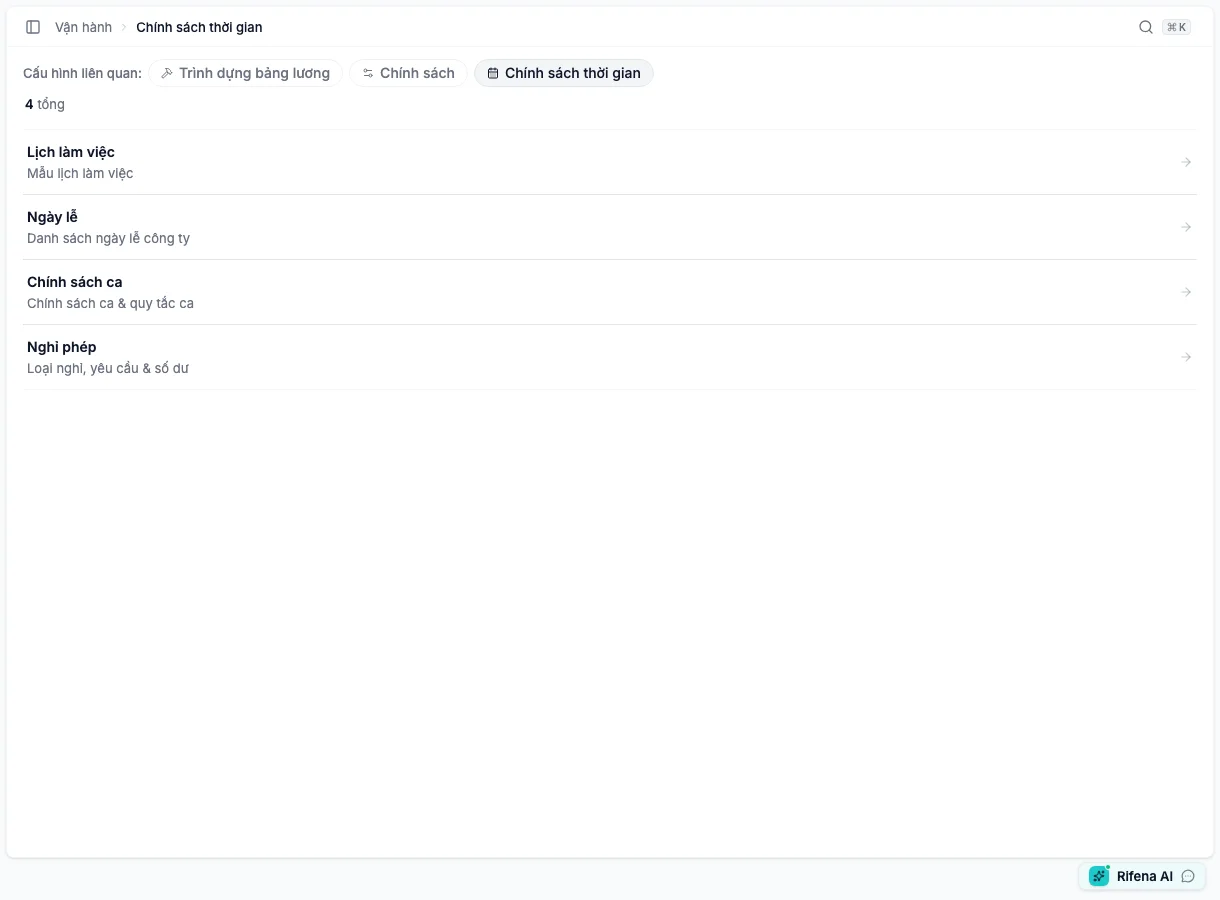
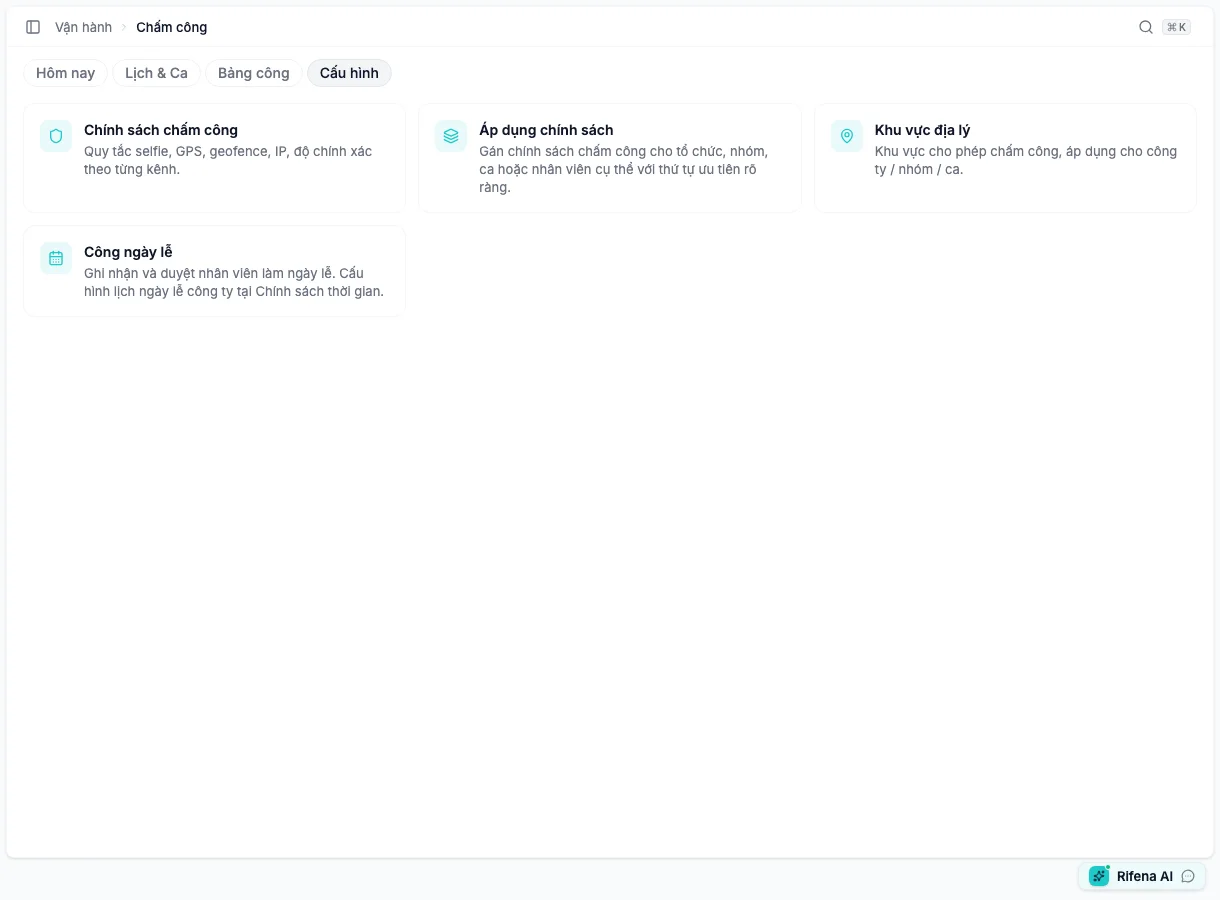
Open time policies to choose Open work schedules, Open holidays, Open shift policies, or Open leave policies. Use Open timekeeping configuration for Open clock policies, Open policy assignments, Open geofences, and Open holiday work. To check working-time and overtime limits, use Open labour rules.
Recommended order
Work pattern → Holidays → Shift policy → Shift rules → Leave → Working-time and overtime limits → Clock policy → Assignment → Test
View both configuration areas2 images
Create a work pattern
Screen: Operations → Open time policies → Open work schedules.
Create a pattern, select working days, add a description and make it default only when it is the common pattern. Save and reopen detail.
Expected result: correct working-day count and default state. Read impact before editing/deleting a pattern in use.
Prepare holidays
Screen: Operations → Time policies → Holidays.
Select year, copy the standard calendar or add manually, then verify date range, paid state, holiday-work multiplier, time-off-in-lieu rule and scope/exclusions.
Expected result: an active holiday becomes selectable in Holiday work.
Create shift policies and rules
Screen: Operations → Time policies → Shift policies.
On Shift policies, create a normal, overnight or split shift, enter times, scope and any justified multiplier/allowance. On Shift rules, configure overlaps, minimum rest, maximum shifts and early/late clock grace as Warn or Block.
Expected result: the test employee can be assigned an eligible shift under Operations → Timekeeping → Schedule → Shifts.
Configure leave
Screen: Operations → Time policies → Open leave policies.
Screen: Operations → Time policies → Leave → Leave types.
Review paid/taxable, approval, attachment, calendar/working-day count, notice, maximum consecutive days and carry-over. Prepare a test balance when required.
Expected result: the employee sees the correct type and estimate in Employee portal.
Configure working-time and overtime limits
Screen: System → Settings → Open labour rules.
Apply the required working-time/overtime rules as Warn or Block. Legal value, source and effective date are system-managed.
Create a clock policy
Screen: Operations → Timekeeping → Settings → Attendance policy.
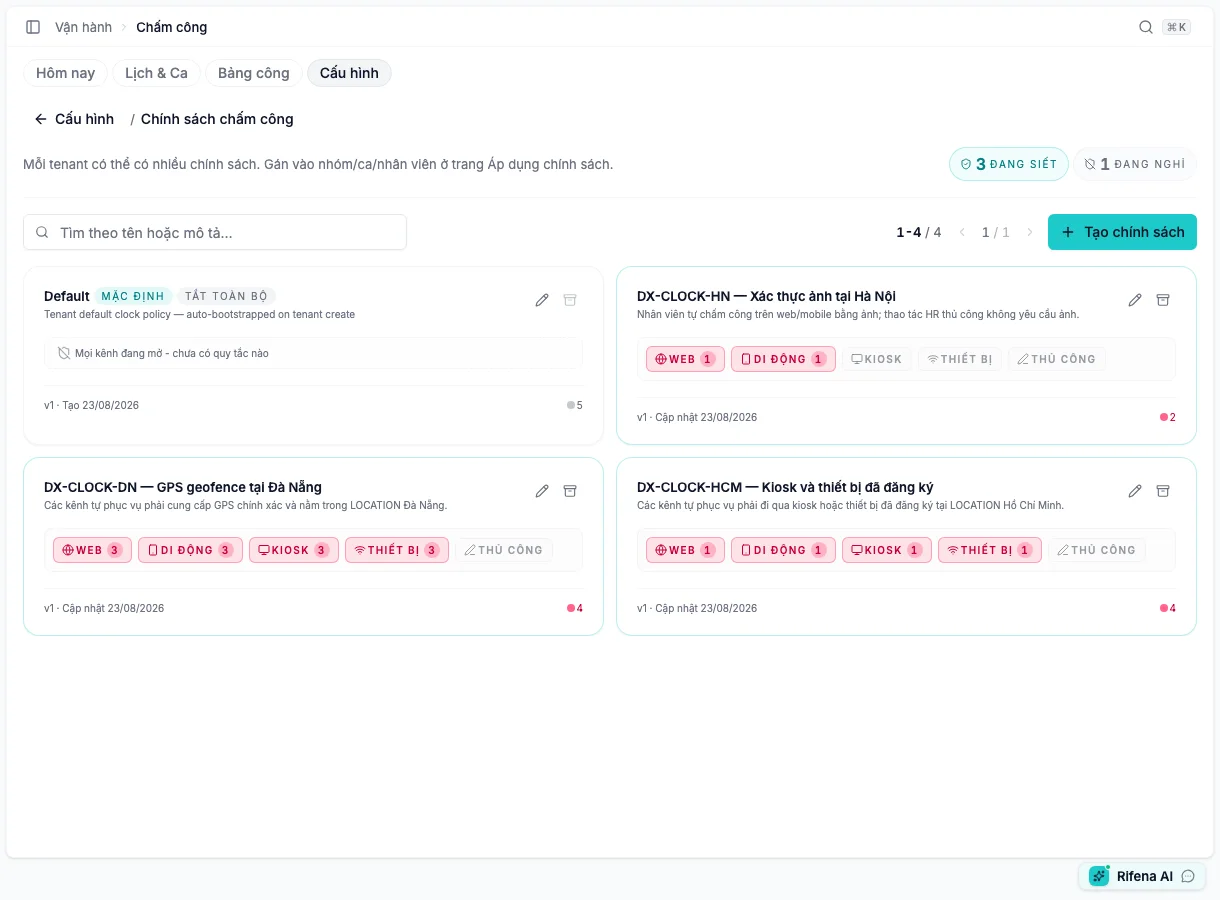
View the clock-policy creation step2 images
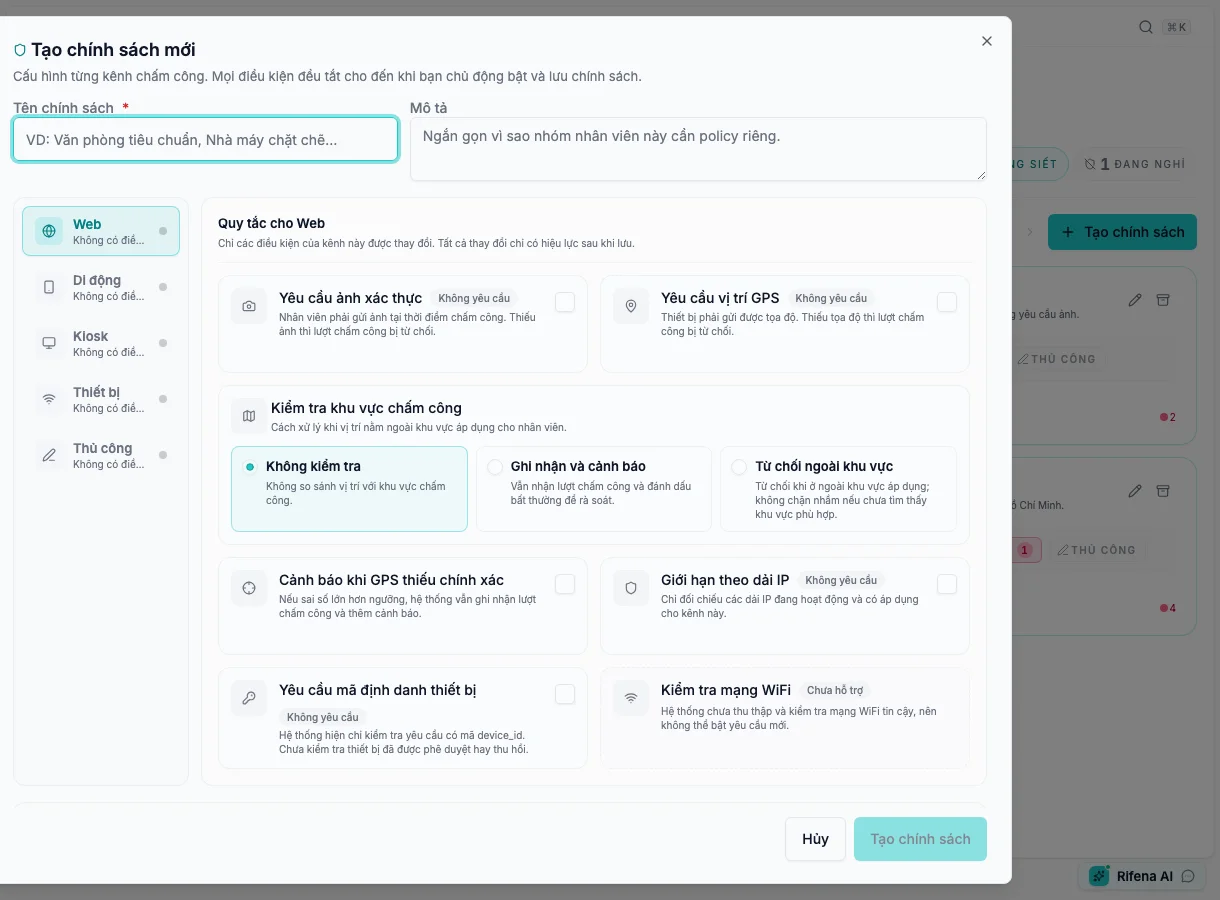
- Select Create policy. Every condition starts off; a new policy does not silently enforce a requirement.
- Enter a name and description that identify the intended group. The system Default policy name is locked when editing, while its rules remain editable with the required permission.
- Review Web, Mobile, Kiosk, Device, and Manual one by one. The marker next to a channel indicates configured conditions, not employee assignment.
- Apply the exact enforcement semantics for each channel:
- Require verification photo and Require GPS location reject an event when the evidence is missing;
- Check clocking area can be Do not check, Record and warn, or Reject outside area;
- Warn when GPS is inaccurate still records the event and flags it for review;
- Restrict by IP range should be enabled only after an active range applies to that channel;
- Require device identifier currently checks that the clocking event includes a device identifier; it does not approve or revoke a device.
- Check WiFi network is marked Not supported. Do not treat it as an active control or enable it for a new policy; clear a legacy value only after impact review.
- Read the channel and requirement summary before saving. Create/save is available only for valid data and a real change; closing a dirty dialog asks for discard confirmation.
- Save and reopen the policy to compare its card summary. Editing an existing policy creates its next version and preserves prior history.
Expected result: the list shows the intended channels and enforcing-rule counts, with no accidental requirement. Enable Open geofences, IP, or evidence checks only after the supporting data is ready and a representative account has tested it.
Create supporting data and assign
Geofence
Screen: Operations → Timekeeping → Settings → Geo zones. Set name, map centre, radius and scope; inspect preview.
IP allowlist
Screen: System → Settings → Open IP allowlist. Set CIDR, label and one or more of Web, Mobile, Kiosk, Device and Manual; selecting none means all sources. Use my IP is only a starting address and network administration must verify it. This list participates in clock checks; it does not restrict Rifena sign-in.
Policy assignment
Screen: Operations → Timekeeping → Settings → Open policy assignments. Select policy, subject (organisation, group, shift, arrangement or employee), effective date and save. Review more-specific assignments that can take priority.
Test with a representative account
- Assign a shift to the test employee.
- Sign in as that employee and open Personal → Employee portal → Attendance.
- Verify photo/location/network requirements.
- Record one test event.
- As HR, reconcile it under Today and Timesheet.
- Submit sample leave and overtime; verify type, balance and approval workflow.
- Clean up test data or document retained evidence.
If blocked, check shift/pattern, policy assignment, browser permission, geofence and IP in that order. Do not loosen the entire organisation policy for one test case.
See Time policies, Timekeeping or Time and attendance issues.