

Guide
Payroll template builder
Every organisation pays people in its own way, and that way usually lives in a spreadsheet nobody dares to touch. Rifena moves the pay structure into a visual builder: each amount is a component with an explicit formula, conditions and caps, tested on real data before it applies. You keep the flexibility of a spreadsheet without losing control.
After this guide you know everything the payroll template builder can do: create templates, assemble components, write formulas, set conditions, preview per employee, publish with versions and adjust pay for one person.
What the builder can do
- Create several templates per scope: the whole company, selected groups, a pay group, or a hand-picked set of employees.
- Assemble a template from the component library: earnings, deductions, tax, employee contributions, or your own custom components.
- Choose how each amount is calculated: a fixed value, a rate times a quantity, a percentage of another amount, or a lookup in a data table.
- Write formulas with contract, attendance and previously calculated variables, plus rounding, clamping and conditional functions.
- Apply conditions by contract type, employee type, department, seniority or probation.
- Preview pay per employee and the estimated cost of the whole scope before publishing.
- Save versioned drafts, compare, restore and publish with an overlap check across templates.
- Override one component for one employee for a date range, with a reason and an approval step.
If your plan does not include the module, payroll runs still use the standard formula. See Payroll without the template builder.
The template list
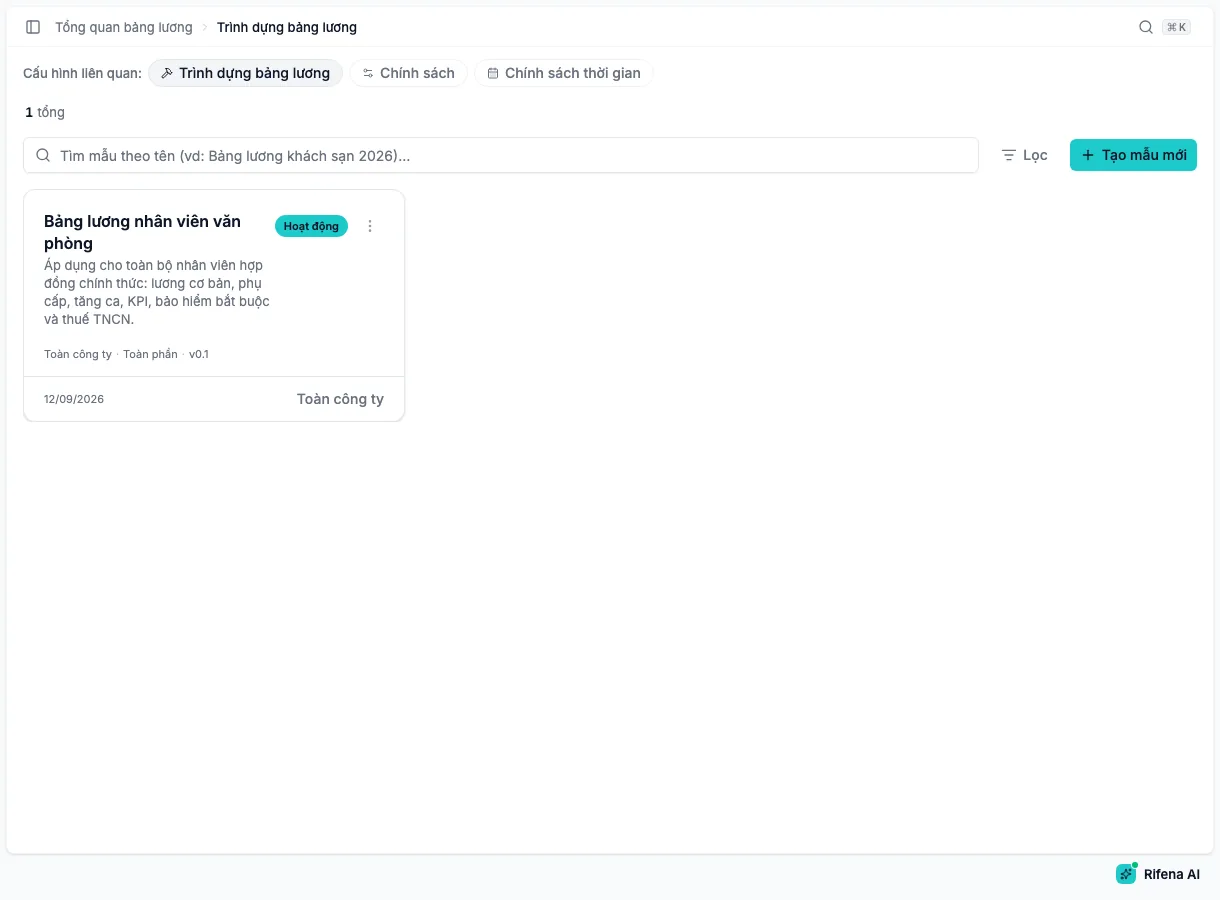
The list is the entry point for every template. Search by name and use Filter by status or scope when the list grows.
| On a card | Meaning |
|---|---|
| Draft | Being built; not used for payroll yet. |
| Active | Published and selectable when a payroll run is created. |
| Archived | No longer used for new runs; hidden from the default list. |
| Whole company, By organisation, Pay group, Specific employees | The employees the template applies to. |
| Full or Overlay | A complete template, or one that only overrides some components of a base template. |
| v2026.8 | The current version. |
The ⋯ menu on a card offers Edit, Create a payroll run with this template, Clone and Delete. Deleting a template cannot be undone and removes all its versions; payroll runs already calculated are not affected.
Creating a template
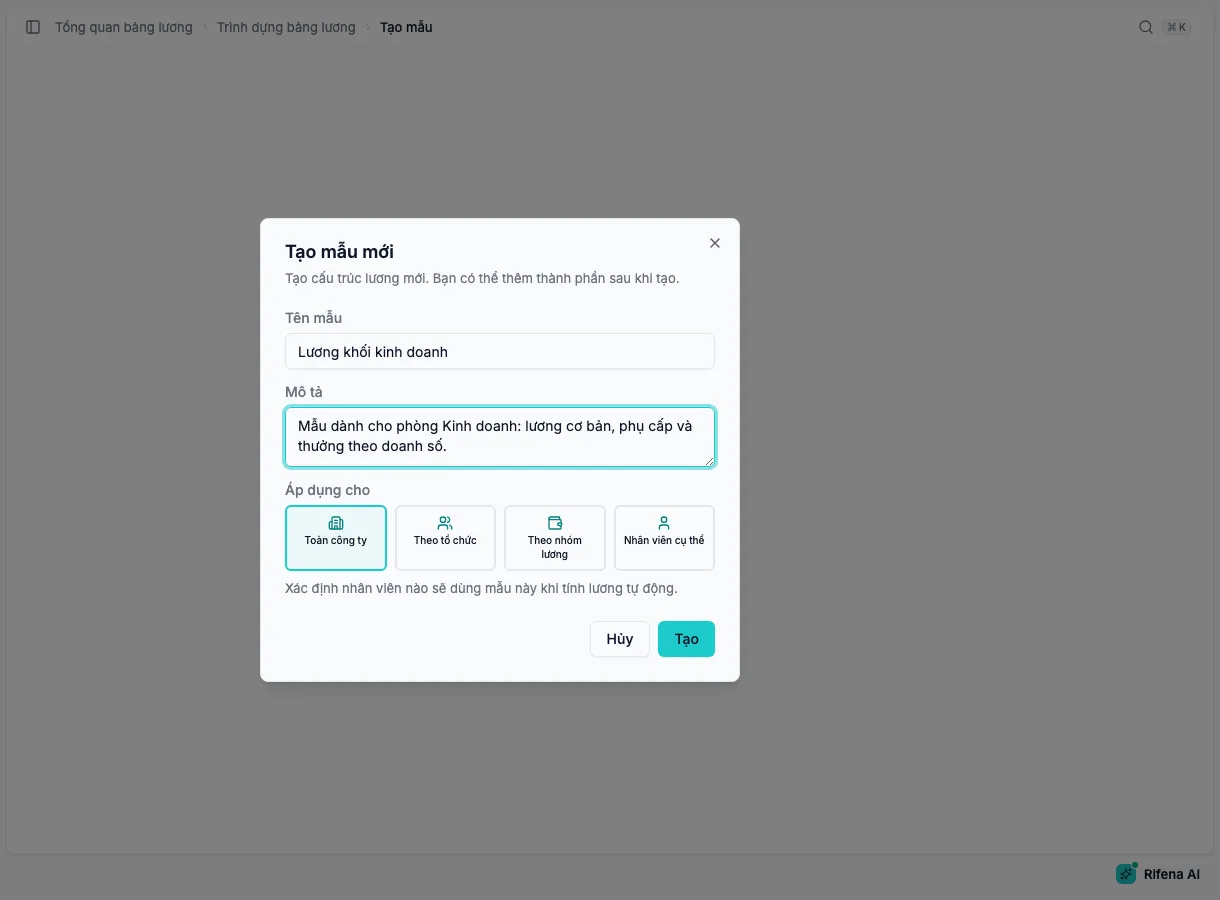
- Choose New template, enter a Template name and a short Description.
- Choose Applies to: Whole company; By organisation and at least one group; By pay group and at least one Contract type (permanent, fixed term, part time, casual, freelance or role based); or Specific employees and pick each person.
- Choose Create. Rifena opens the builder for the new template in Draft status as a Full template; the type and these details can be reviewed later on the Configuration tab of the preview panel.
Besides starting from scratch, you can Clone an active template to adapt it for another group, or Import a template from an Excel, JSON or CSV file previously exported from Rifena.
The builder screen
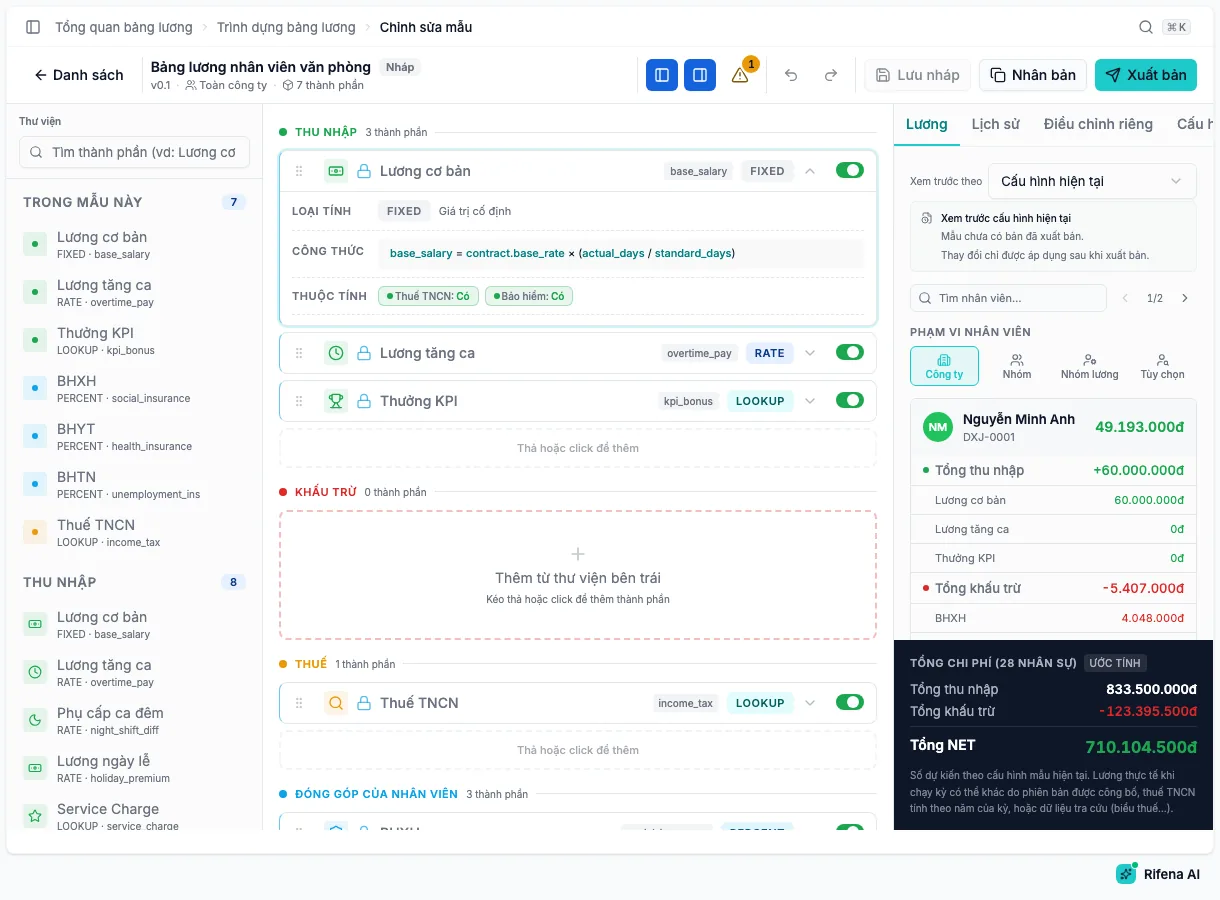
The builder has three areas:
- Library on the left: available components by category, an In this template section and two system items.
- Canvas in the middle: component cards grouped under Earnings, Deductions, Tax and Contributions.
- Preview on the right with the Salary, Configuration, History and Overrides tabs.
The toolbar shows the template name, status, version, scope and component count. Two buttons hide or show the library and the preview. The Unsaved or Draft saved at … indicator tells you whether local changes are still waiting to be synced.
The component library
The library groups components by category. Click a library card or drag it onto the canvas to add it to the template; the search box filters by component name or code.
| Category | Available components |
|---|---|
| Earnings | Base salary, housing allowance, meal allowance, overtime pay, KPI bonus, holiday bonus, night shift differential, holiday premium, service charge, holiday allowance, training certificate allowance |
| Deductions | Social, health and unemployment insurance, attendance penalty, loan or salary advance, violation fine, unpaid leave, salary advance recovery, compliance penalty, leave deduction |
| Tax | Personal income tax, family deduction |
| Contributions | Employer social, health and unemployment insurance |
| System | Custom Component to create your own component, Condition Block to add a condition block |
Some components are required system components: they cannot be deleted or renamed, and the system applies them whenever matching data exists; a zero value does not appear on the payslip. The library also refuses to recreate a component with a system code, such as expense reimbursement, because that is a separate payment obligation.
With Custom Component you enter a Display name, a Component code in snake_case, a Category and a Formula type, then refine the details later. Fixed or percentage components in the earnings, deductions and contributions categories can be saved to the library for reuse in other templates.
Component cards on the canvas
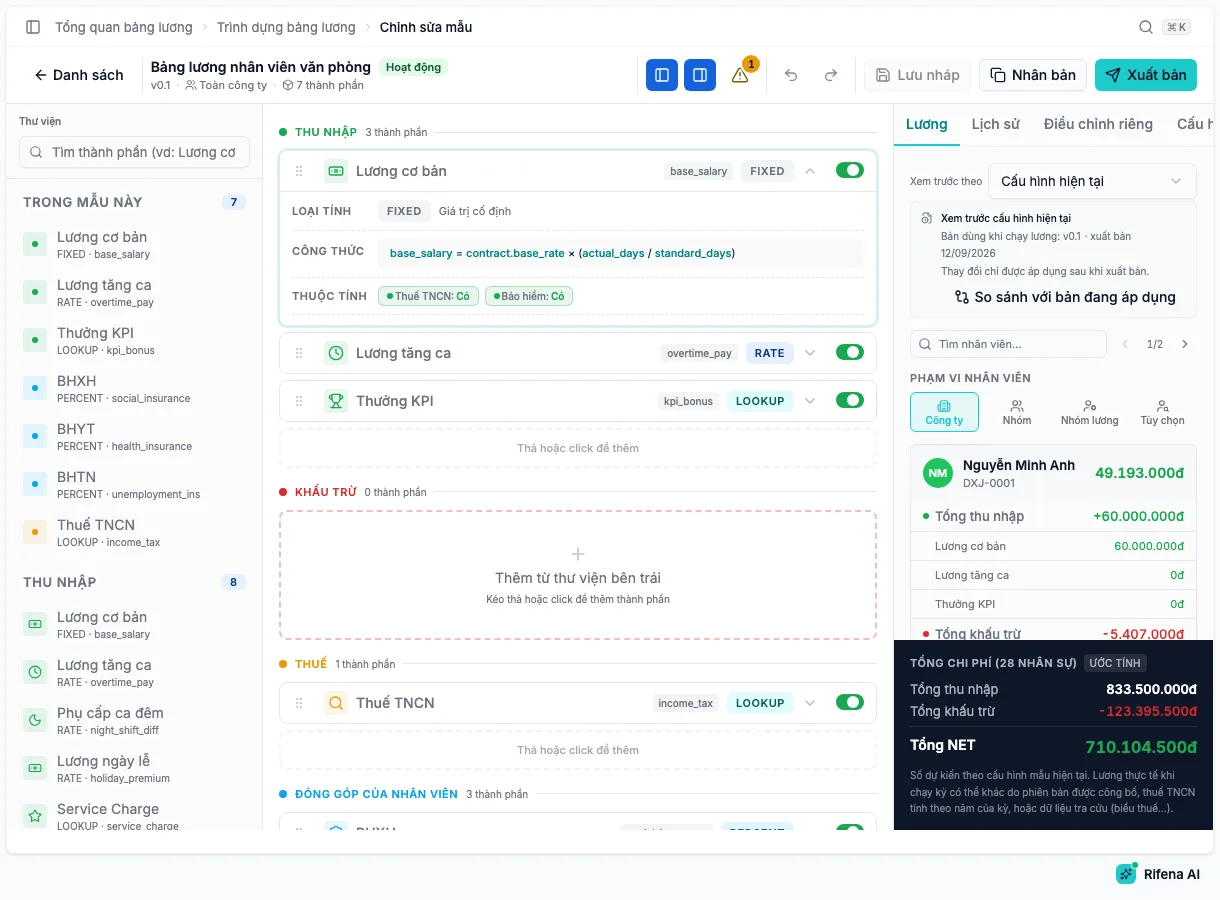
Each card shows the name, code, calculation type and a switch that enables or disables the component. Hover a card to reveal the action bar: Move up, Move down, Edit, Edit formula, Duplicate and Remove. Drag cards to reorder.
Card order is calculation order. A component can only reference components above it; a percentage of an amount that sits below it fails on publish.
A disabled component stays in the template but is not calculated; the template must keep at least one enabled component.
Configuring a component
Choose Edit on a card to open the editor with four tabs: General, Formula, Conditions and Advanced. Changes are only stored when you Save draft or Publish.
General
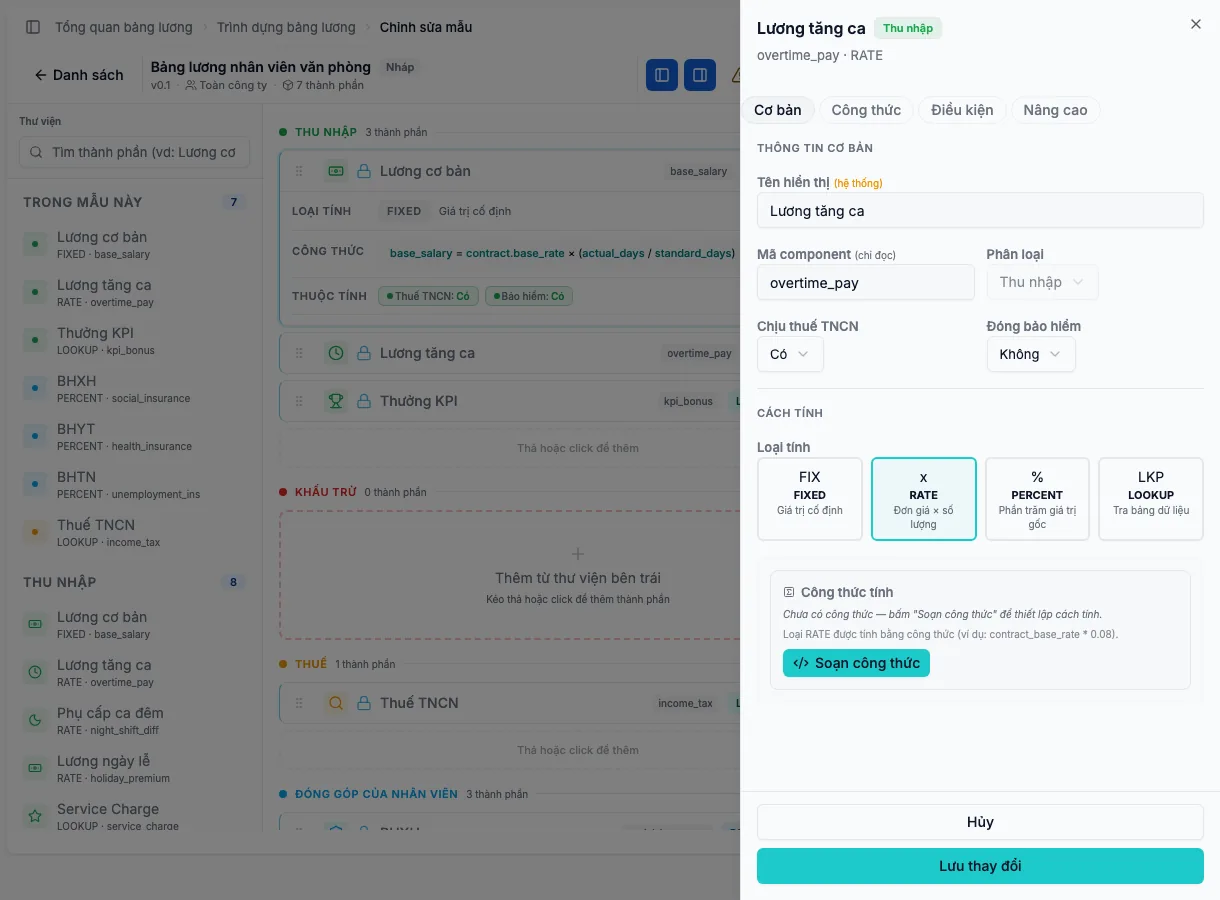
Basic information holds the Display name, Component code, Category and the two attributes Subject to personal income tax and Insurance contribution. The Calculation section changes with the type:
| Calculation type | How it works |
|---|---|
| FIXED – fixed value | Taken from the Employment contract, Policy amount or a typed Fixed value (VND); can be prorated by actual over standard working days. |
| RATE – rate × quantity | Choose a quantity source such as actual hours, approved overtime hours, working days, holiday hours, leave days or unpaid leave days, then enter the Rate. |
| PERCENT – percentage | Choose the Base: base salary, gross salary, taxable income or contributory salary, then enter the Percentage. |
| LOOKUP – table lookup | Choose the Lookup table: service charge pool, shift multiplier, seniority bonus, holiday allowance, leave deduction or compliance penalty, plus the Lookup key. |
For lookup components, View real data opens the data currently configured in Rifena: tax brackets, deductions, shift policies, leave types and penalty rules. It is read-only, for cross-checking before you write the formula.
Formula
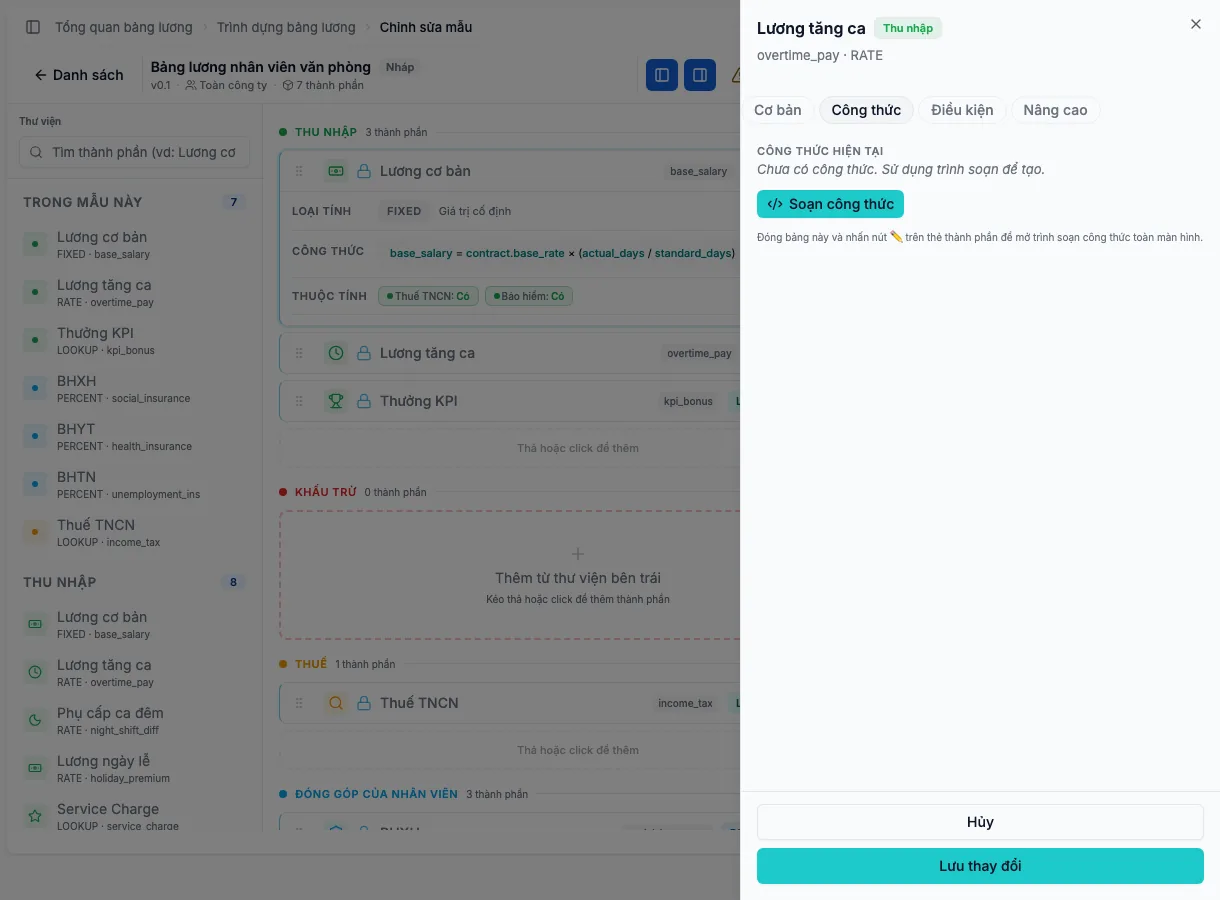
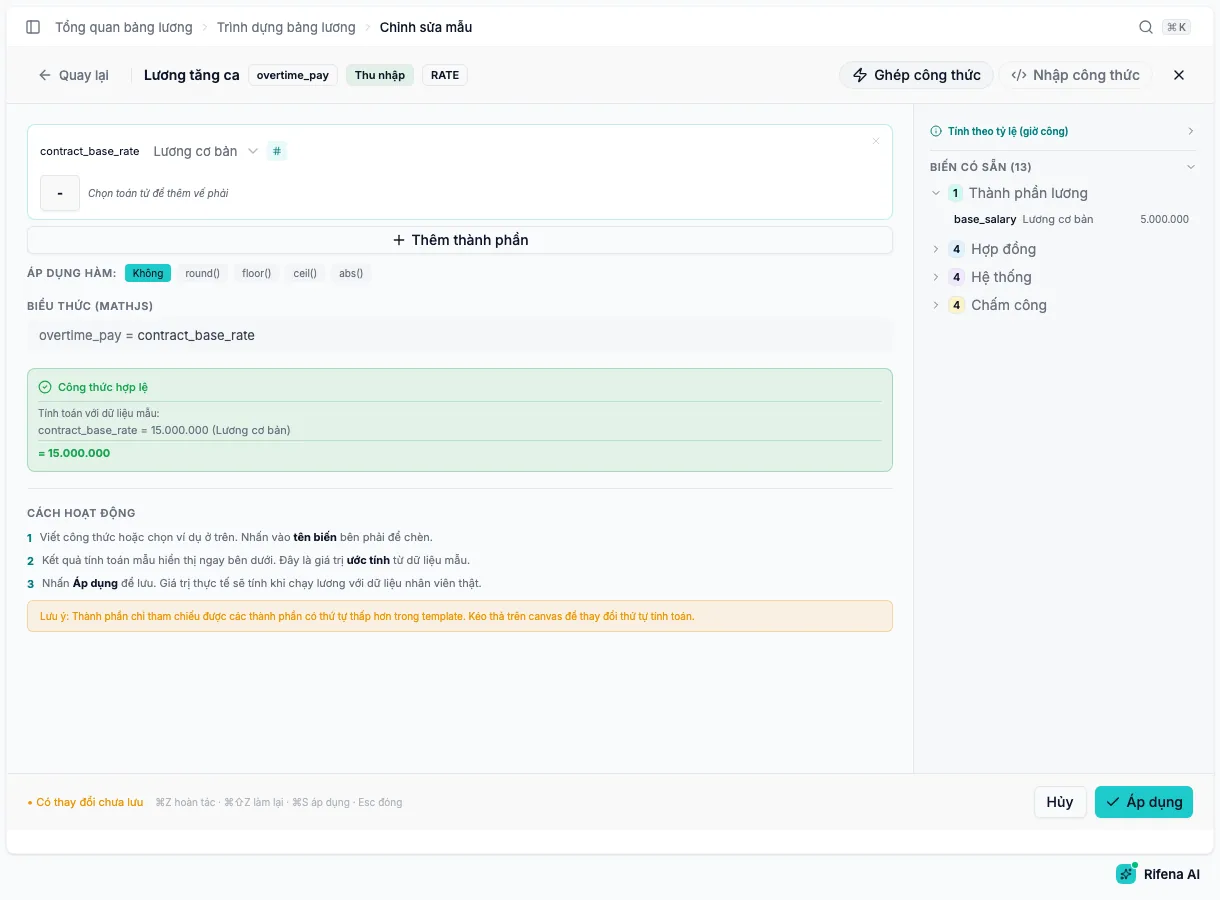
The editor has two modes: Guided picks variables, multiplication or division and a wrapping function; Advanced lets you type the expression. Click a variable or function to insert it at the cursor.
Available variables are grouped:
- Contract: base salary from the contract, contract type, seniority in years.
- Attendance: standard days, actual days, hours per day, daily rate, hourly rate, overtime hours, night hours, holiday hours.
- Salary components: the calculated value of every component above, referenced by code.
- System and lookup variables: looked-up value, record count, total insurance base, rates, total points, total violation minutes, total leave days, remaining balance, taxable income, effective tax rate.
Supported functions: round, floor, ceil, min, max, abs, pow, mod, IF, SUM, CLAMP and PRORATE. Quick start suggests common formulas per calculation type, such as pay by actual days, overtime at 150 %, capped 8 % insurance or a rounded lookup result.
Rifena reports syntax errors, unknown variables, lookup variables used outside lookup components, and results that are not a valid amount. Editor shortcuts: ⌘Z undo, ⌘⇧Z redo, ⌘S apply, Esc close.
Conditions
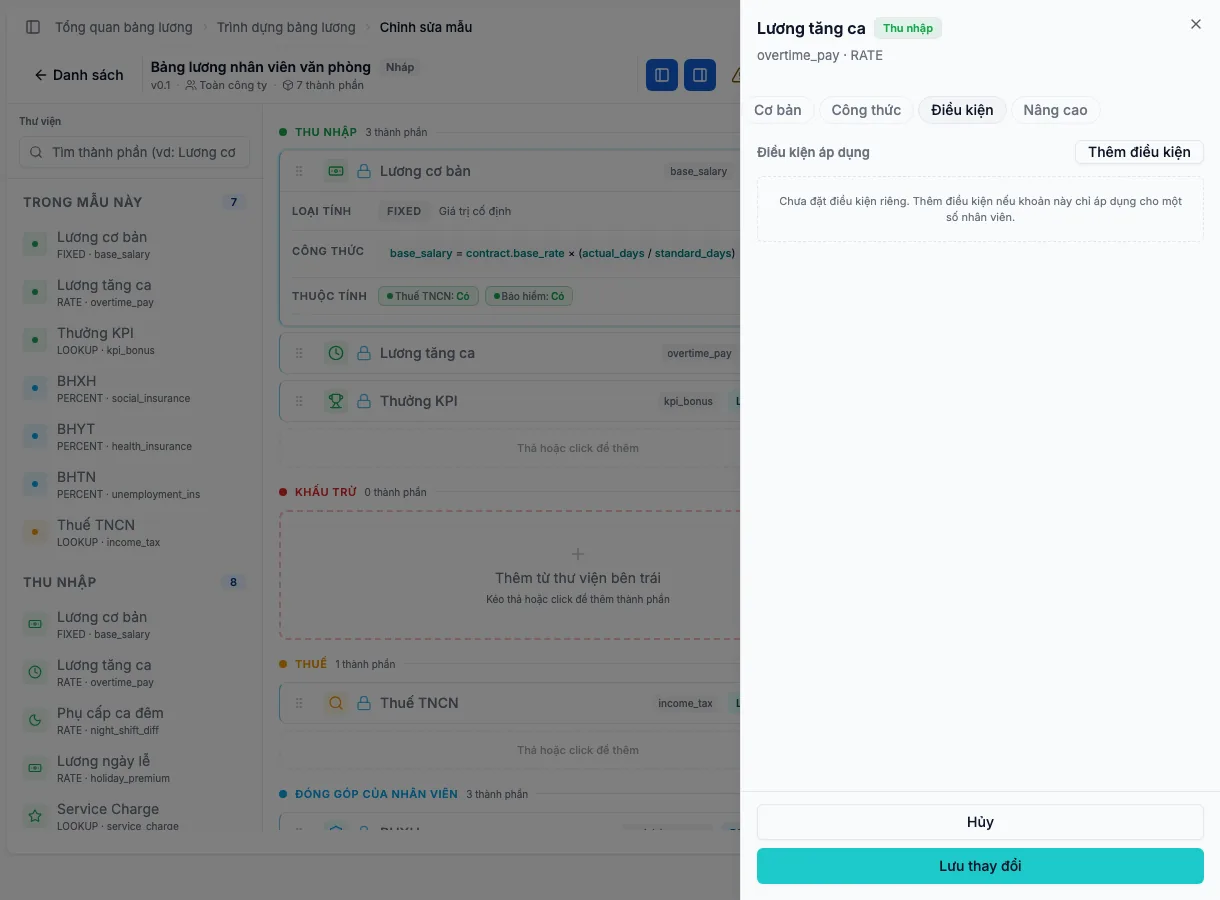
Conditions decide when the component is calculated. Data comes from the employee’s profile, contract and primary group: Contract type, Employee type, Employee group, Department, On probation and Seniority (months). Operators include equals, not equal, in, not in, greater than, less than, greater or equal, less or equal and exists.
For each outcome you pick an action: Calculate this amount, Keep this amount at 0 or Do not calculate and drop from the result. A condition without a comparison value blocks publishing until it is completed or removed.
Advanced
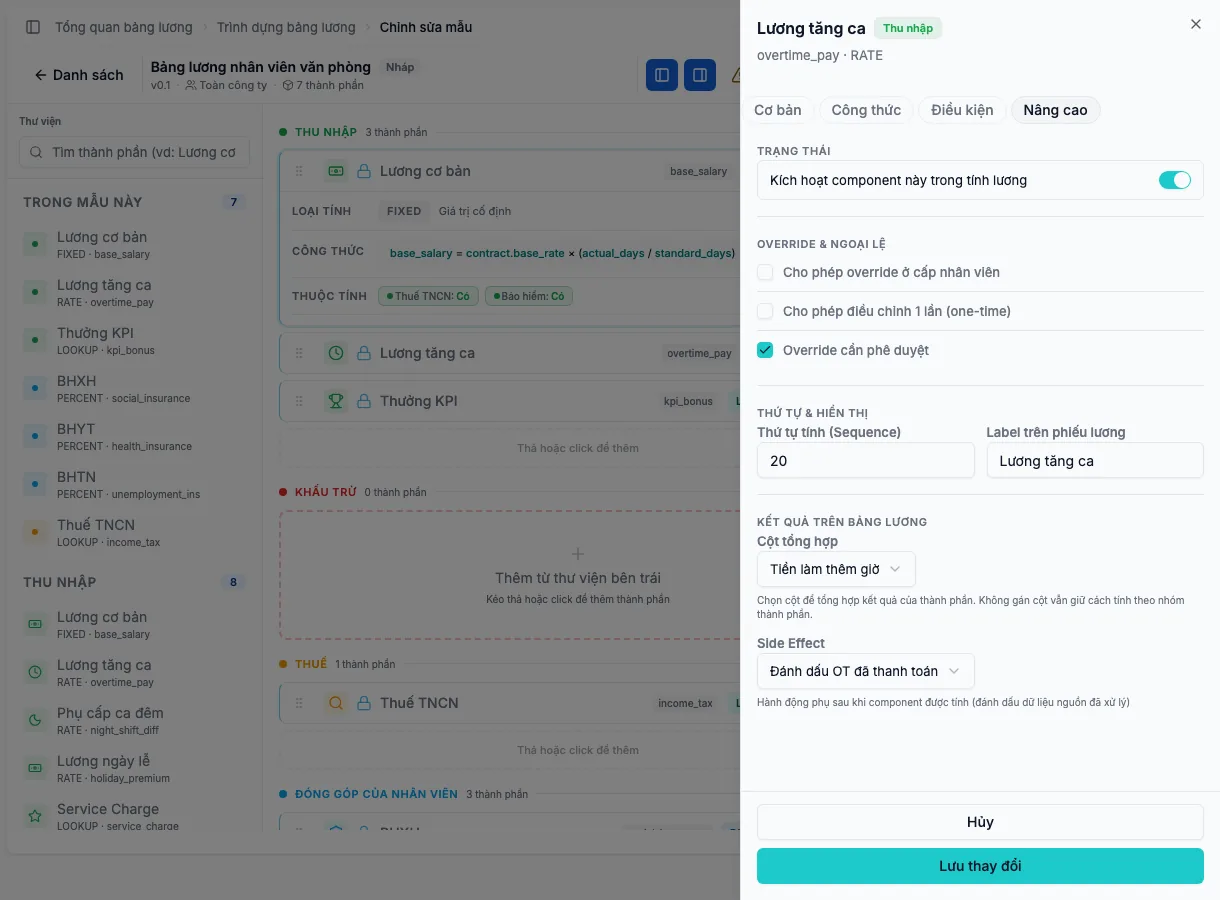
- Active: switch off to keep the component in the template without calculating it.
- Allow employee-level override, Allow one-time adjustment and Override requires approval: open the way for individual overrides described below.
- Output column: choose which payslip column receives the result, such as base salary, allowances, overtime pay or insurance deductions. Leaving it unset keeps the aggregation by component category.
- Side effects: mark source data as processed after calculation, such as overtime paid, leave processed, service charge distributed, violations processed or holiday work linked. Two components cannot share the same side effect.
Caps
Some amounts have a ceiling. For mandatory insurance components the cap is managed by Labour rules per payroll period and the unit’s wage region: social and health insurance use 20 times the base salary reference, unemployment insurance uses 20 times the regional minimum wage. You do not type a fixed cap for these; if the rule lacks data, the preview still runs with a provisional result and Template checks names the component whose cap is unknown.
For other eligible components, the Cap section lets you pick the capped field such as overtime or night hours, enter Max and a rounding mode: down to 1,000, up to 1,000, nearest 1,000 or none. The cap applies to the base value before the percentage, and cannot be combined with a custom formula.
Previewing pay before publishing
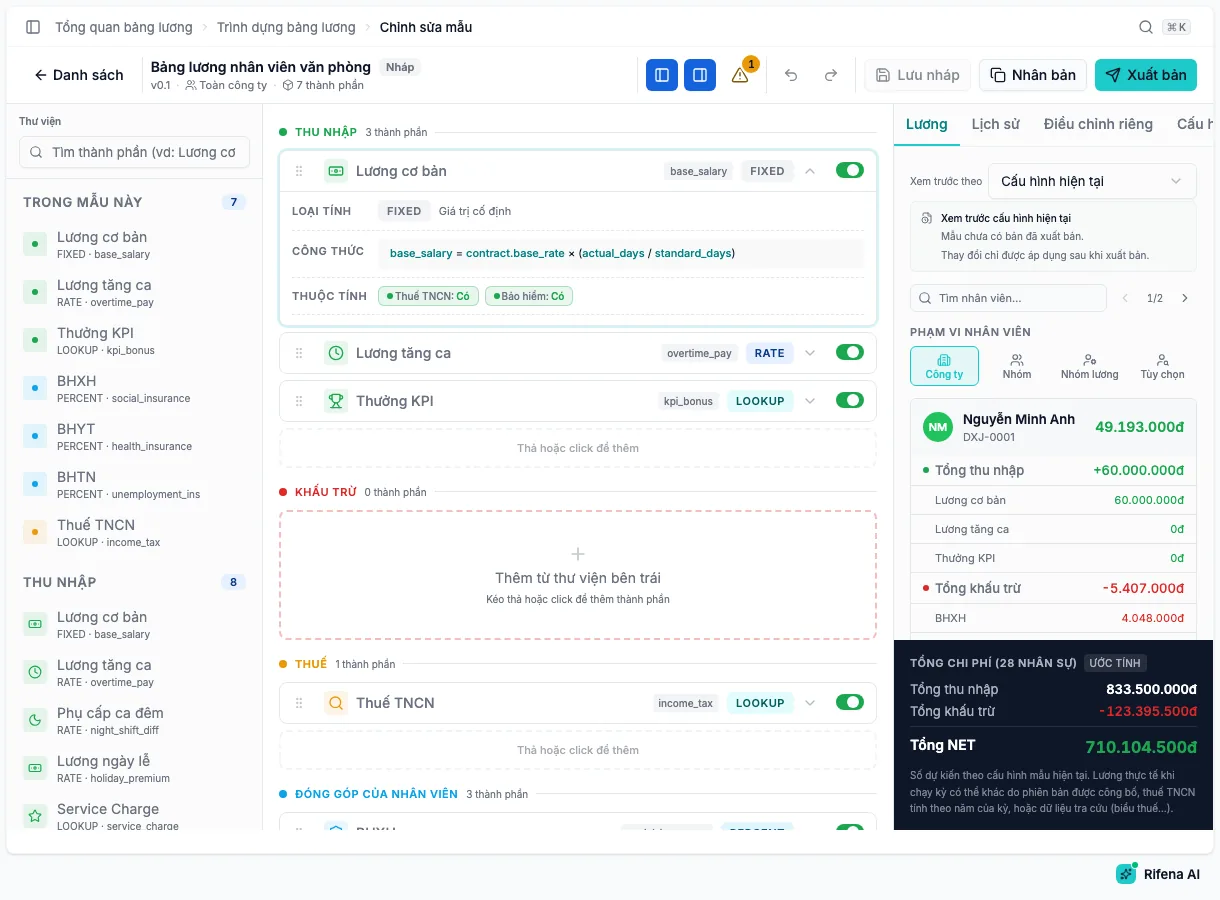
The Salary tab calculates on the configuration you are editing:
- Choose the preview scope: Company by contract type, Group by selected groups, Pay group, or Custom by selected employees.
- Search and pick a representative employee. Each amount appears with gross income, total deductions and net pay.
- Read the Total cost of the whole scope at the bottom. It is an Estimate based on the current configuration; actual pay depends on the published version, the tax year of the period and lookup data.
The Preview by selector switches between the Current configuration and a published version, with Compare with the applied version. Personal income tax in the preview uses the current tax table.
Preview needs the permission to simulate payroll templates. A very large scope is not totalled; run payroll for exact figures. When a component cannot be calculated, the panel reports Pay not fully calculated and points to the component to check.
Template checks
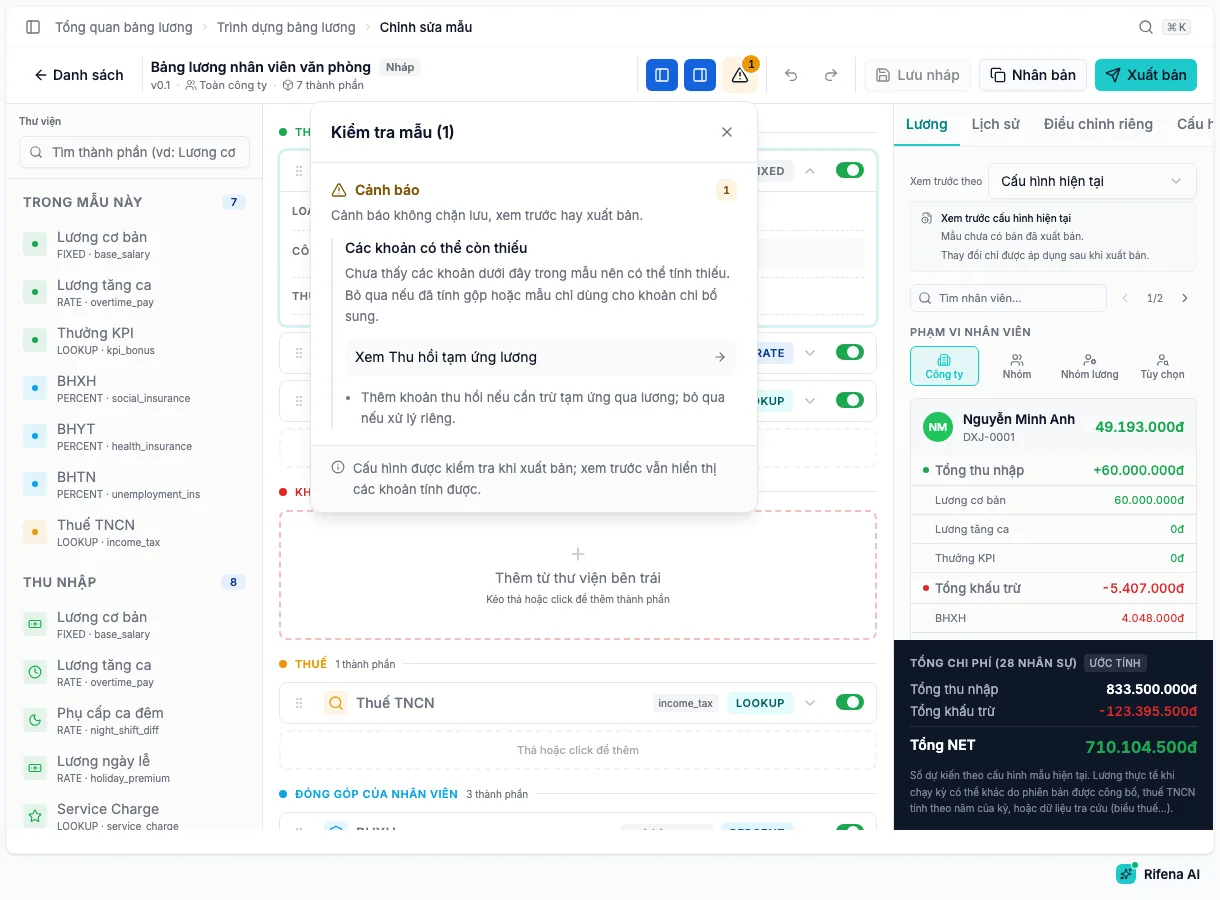
The Template checks button on the toolbar collects observations about the template:
- Possibly missing amounts, for example no insurance deduction or advance recovery yet; ignore if they are calculated elsewhere.
- Several components reading the same data source, which may double count.
- An insurance cap that cannot be resolved because the unit has no wage region or the rule has no effective value.
- A preview that deducts attendance violations beyond the labour-rule limit.
- A last publish that did not succeed.
Configuration is validated strictly on publish; the preview still shows the amounts that can be calculated.
Drafts, undo and version history
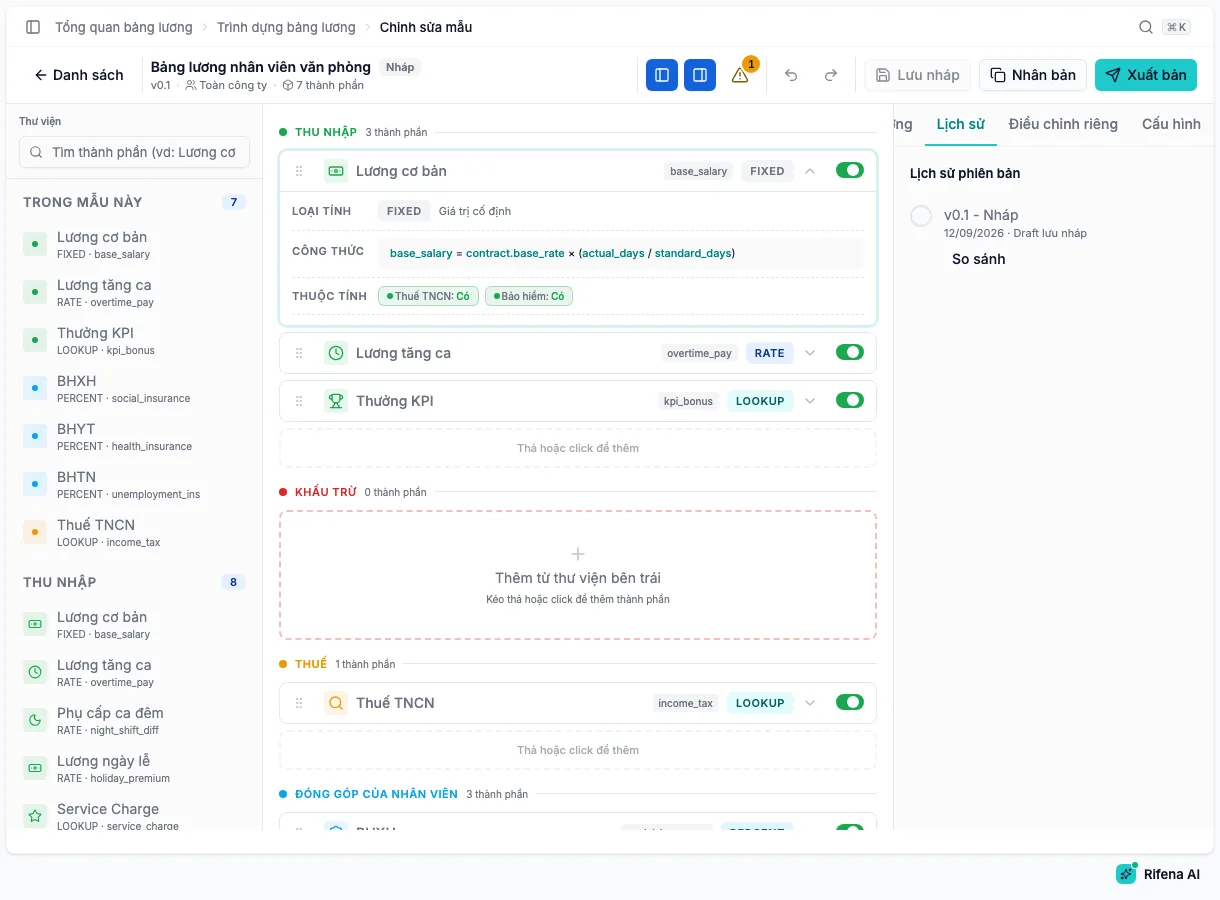
Every edit on the canvas is a local change until you Save draft: Rifena syncs the changes and creates a new draft version set as current. Undo (⌘Z) and Redo (⌘⇧Z, ⌘Y) apply to local changes; ⌘S saves the draft.
The History tab lists versions labelled Current, Draft or Archived. Compare shows components added, removed, changed and unchanged, including changes to formulas, caps, conditions, output columns and attributes. Restore creates a new draft from an older version; the published version stays in force until you publish that draft.
Publishing
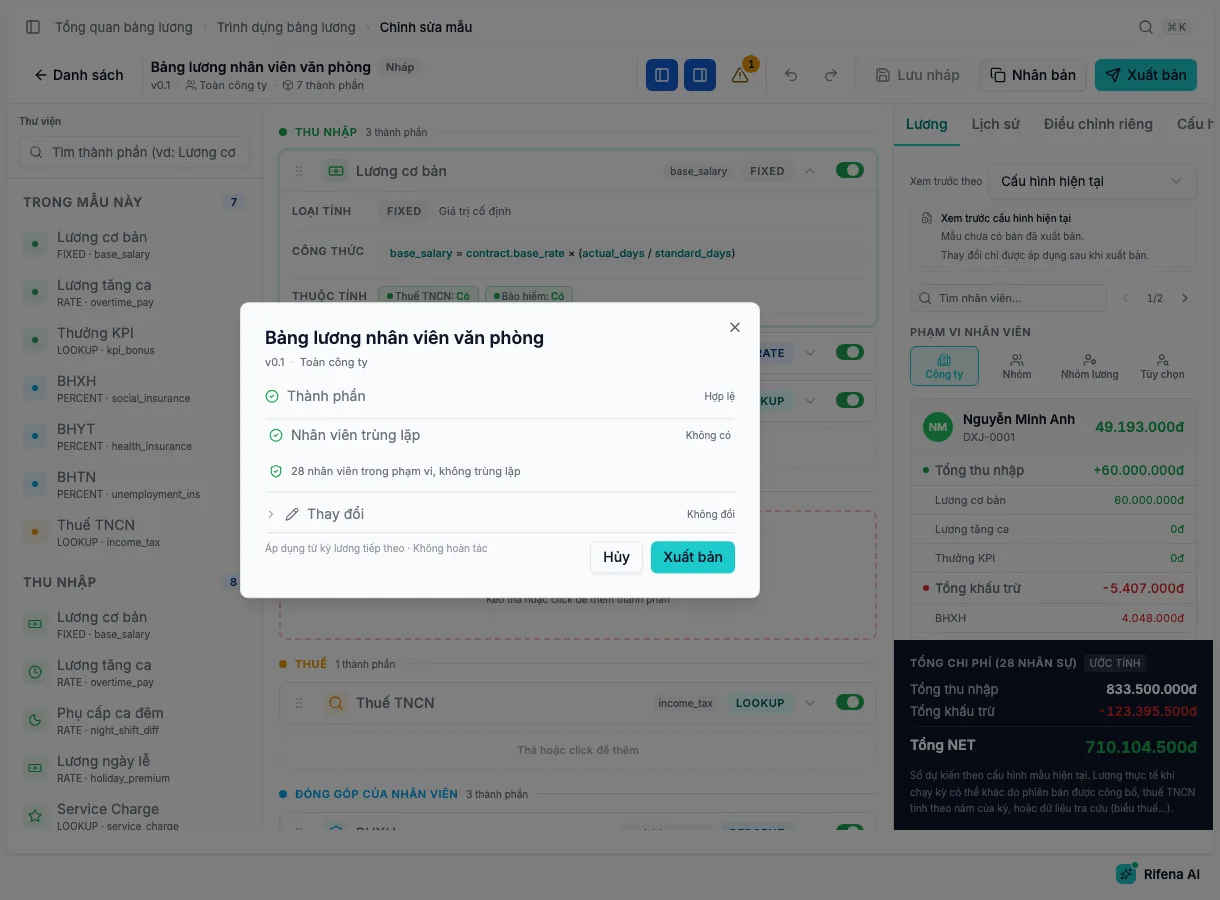
Choose Publish to open the final check:
- Components: valid, or the number of errors and warnings to fix.
- Overlapping employees: people who already belong to another template in the same scope; the new template takes priority for them.
- Changes compared with the last published version.
- Choose Publish again to confirm. The template becomes Active and the new version applies from the next payroll period.
Publishing is blocked when:
- the template has no components, or every component is disabled;
- a component code is empty, too long, duplicated or uses a system code;
- a component needs a formula but has none;
- a percentage references itself, a missing component or one below it;
- a cap has no maximum, or a condition lacks a value;
- two components share a side effect.
Fix each error on the card it points to, save the draft and publish again. Do not create another template to bypass the error.
If an individual override was approved after the draft was created, Rifena creates a new draft that includes it and asks you to review and Publish again.
Individual overrides
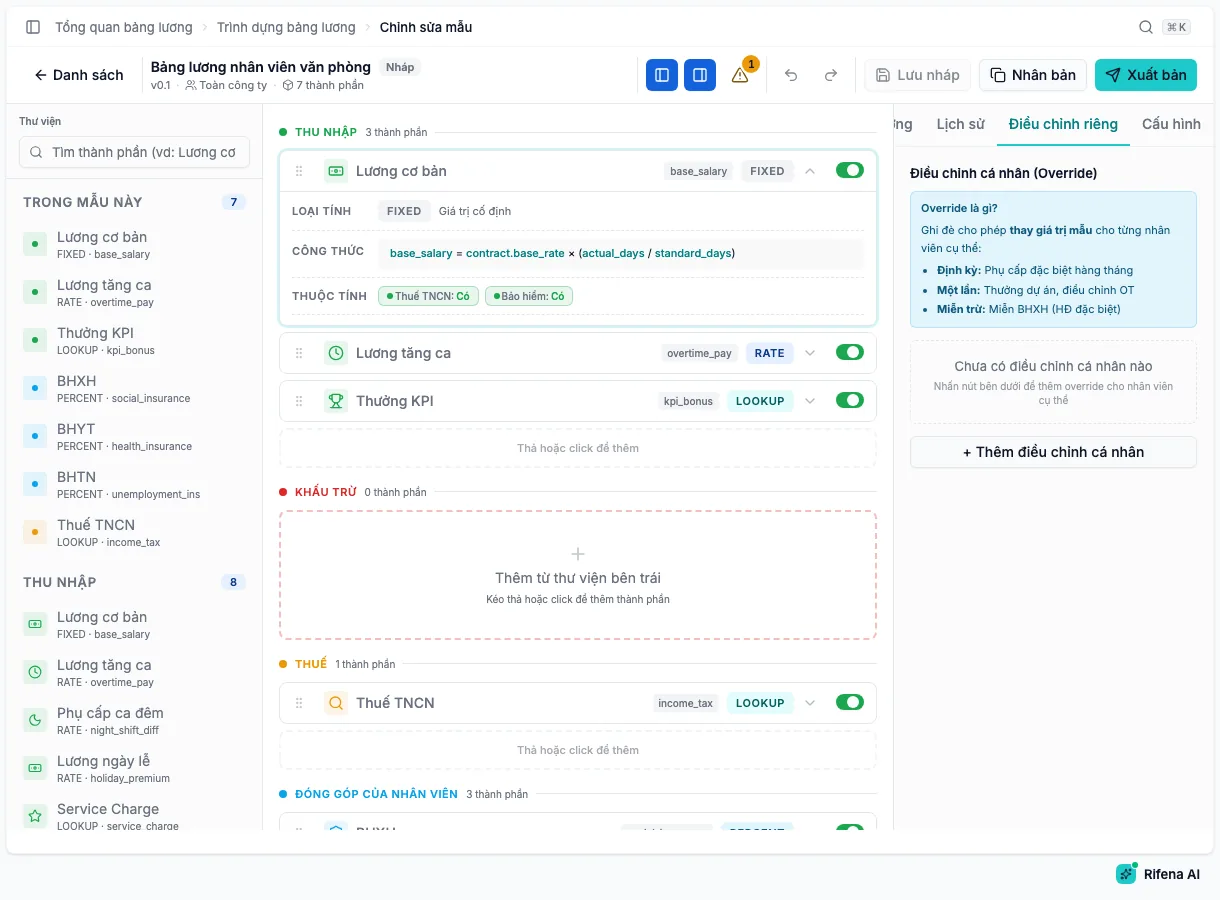
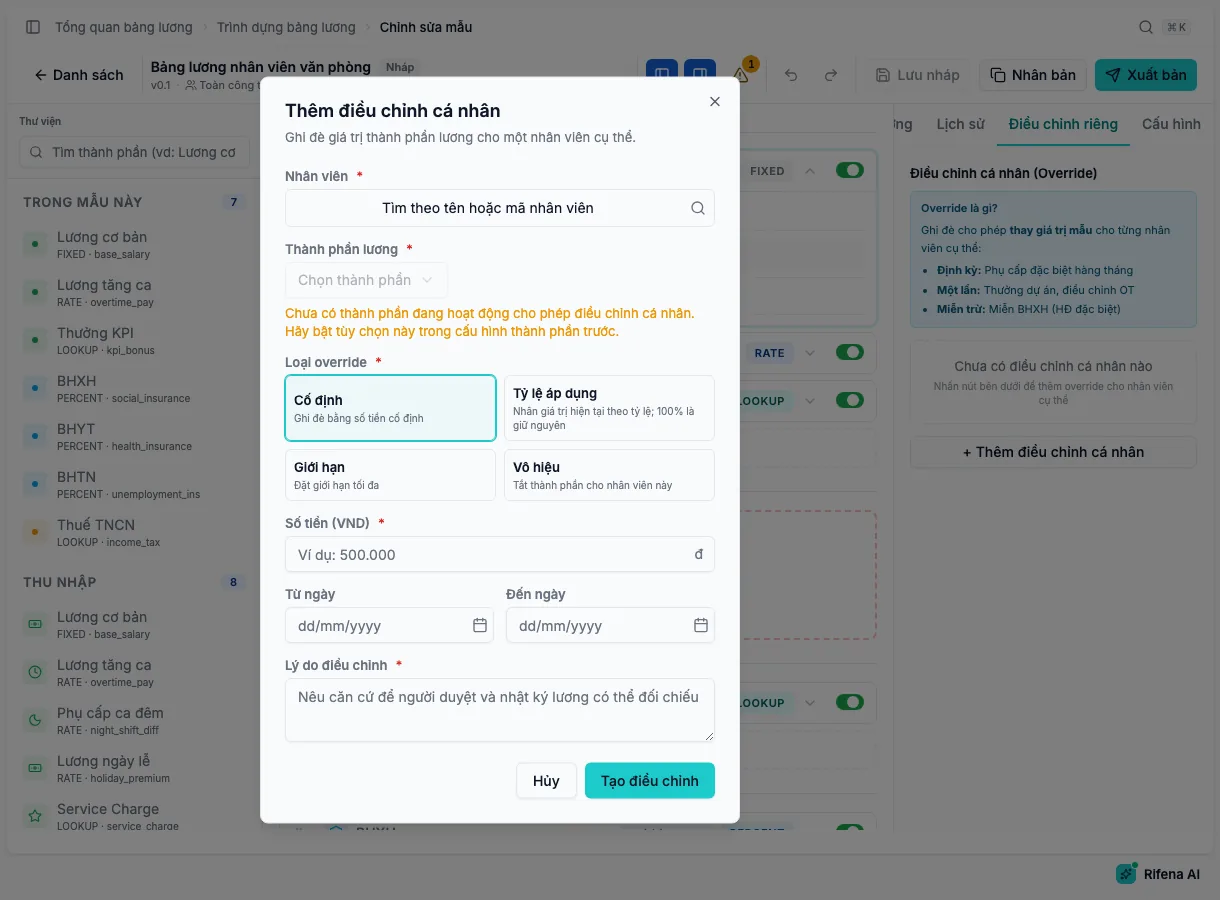
The Overrides tab covers the person who differs from the shared template: a monthly special allowance, a one-off project bonus or an exemption under a special contract. Choose Add individual override, then:
- Pick the Employee and a Salary component that is enabled and allows overrides.
- Pick the Override type: Fixed replaces the amount; Applied rate multiplies the current value, where 100 % keeps it; Cap sets a ceiling; Disable switches the component off for this person.
- Enter the value, From date, To date and the Reason, then choose Create override.
The override is saved as Pending and enters the approval workflow if the organisation has one for Component override; otherwise an authorised person handles it here with Approve or Reject. The date range cannot overlap another pending or approved override of the same component.
Using the template in payroll
Choose Create a payroll run with this template on a card to start a payroll run with the template preselected. A run always uses the latest published version; if the template still has draft changes, Rifena says so before continuing. Employees in scope who match no template’s contract types are calculated with the standard formula.
The whole cycle from closing attendance to payment is in Monthly payroll cycle.
Command palette and shortcuts
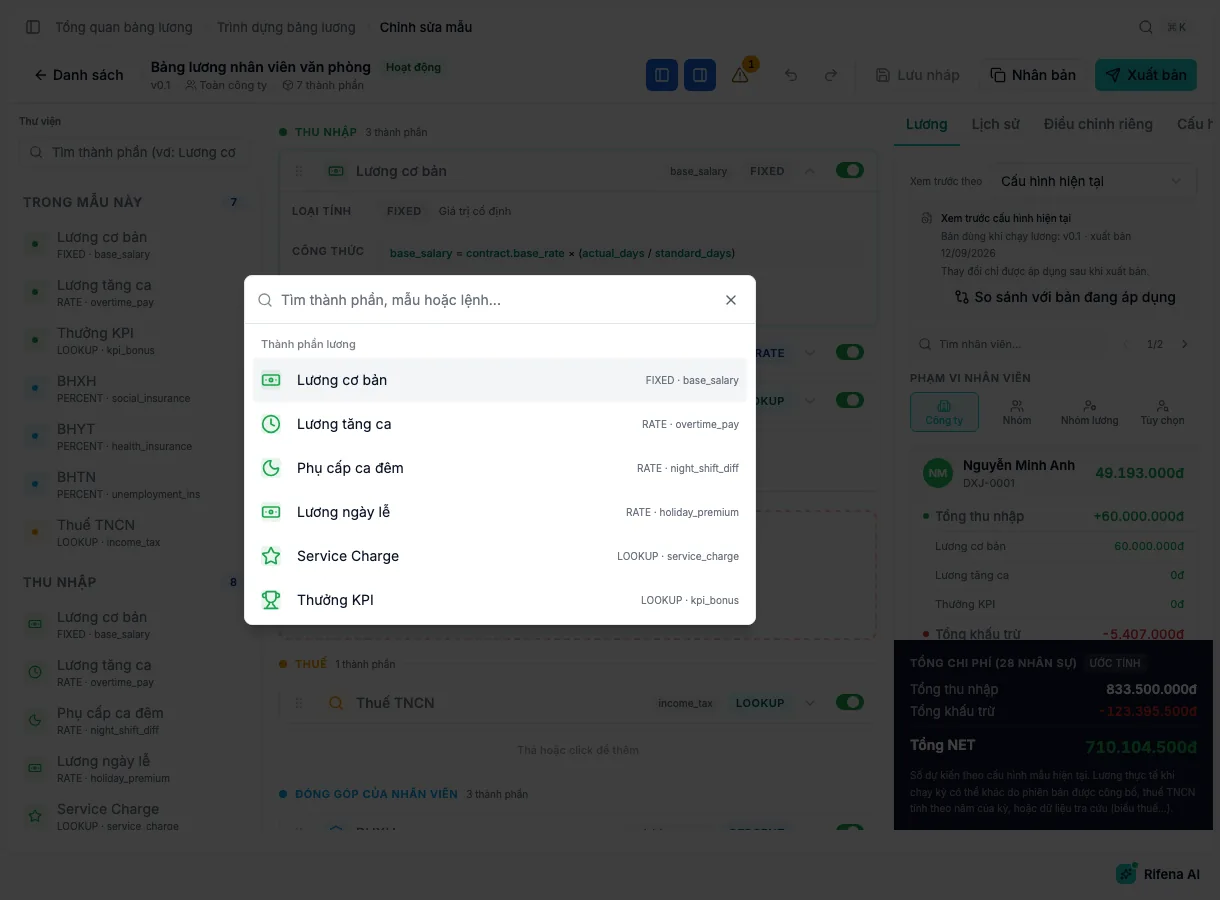
| Shortcut | Effect |
|---|---|
| ⌘K | Open the command palette |
| ⌘Z | Undo the last local change |
| ⌘⇧Z or ⌘Y | Redo |
| ⌘S | Save draft |
| Esc | Close the formula editor or the open dialog |
Safety and limits
- Publishing cannot be undone, but older versions stay in History for comparison and restoring as a new draft.
- Mandatory insurance caps, legal values and system components cannot be edited in a template; change the effective rule in Labour rules instead.
- Labour rules in Block mode must be resolved before publishing or running payroll; Warn mode only reminds and never blocks.
- For organisations in Vietnam, attendance violations are points and reference amounts; Rifena does not allow automatic wage deductions from violations, and a template that breaks this rule is blocked on publish.
- A published template keeps working even if the plan later loses the module, but you cannot edit it or publish new versions.
- View-only users see templates but cannot save drafts, publish or preview.
Next
- Payroll foundation to prepare periods, policies and the first template.
- Labour rules: validation and safety to understand insurance caps and block mode.
- Payroll and payment issues when results are not as expected.