

Guide
Organisation tree and chart
In many organisations the org chart is a slide deck redrawn once a year. In Rifena the organisation tree is live data: each group decides who sees whose data, who approves for whom and which payroll template applies. That is why structure changes happen on a draft, with undo, a change plan and publishing only when you are sure.
After this guide you know everything you can do with the organisation tree and chart: view it in several ways, search and filter, edit on a draft, publish safely, jump to group-scoped work, and understand what the tree drives across Rifena.
What the organisation tree can do
- Show one structure in two views, Tree for quick browsing and Chart for the big picture, plus the Employee tree for managers and members.
- Search the whole organisation and filter by type, status, level, manager, headcount and child groups.
- Add child and sibling groups, rename, deactivate and drag to a new parent on a draft with undo.
- Load a ready-made organisation template for a new company.
- Publish the draft as an explicit change plan; the system rolls back on failure.
- Jump to people, timekeeping, payroll runs, insurance, compliance, the payroll builder and role grants for the selected group.
Viewing the structure in two ways
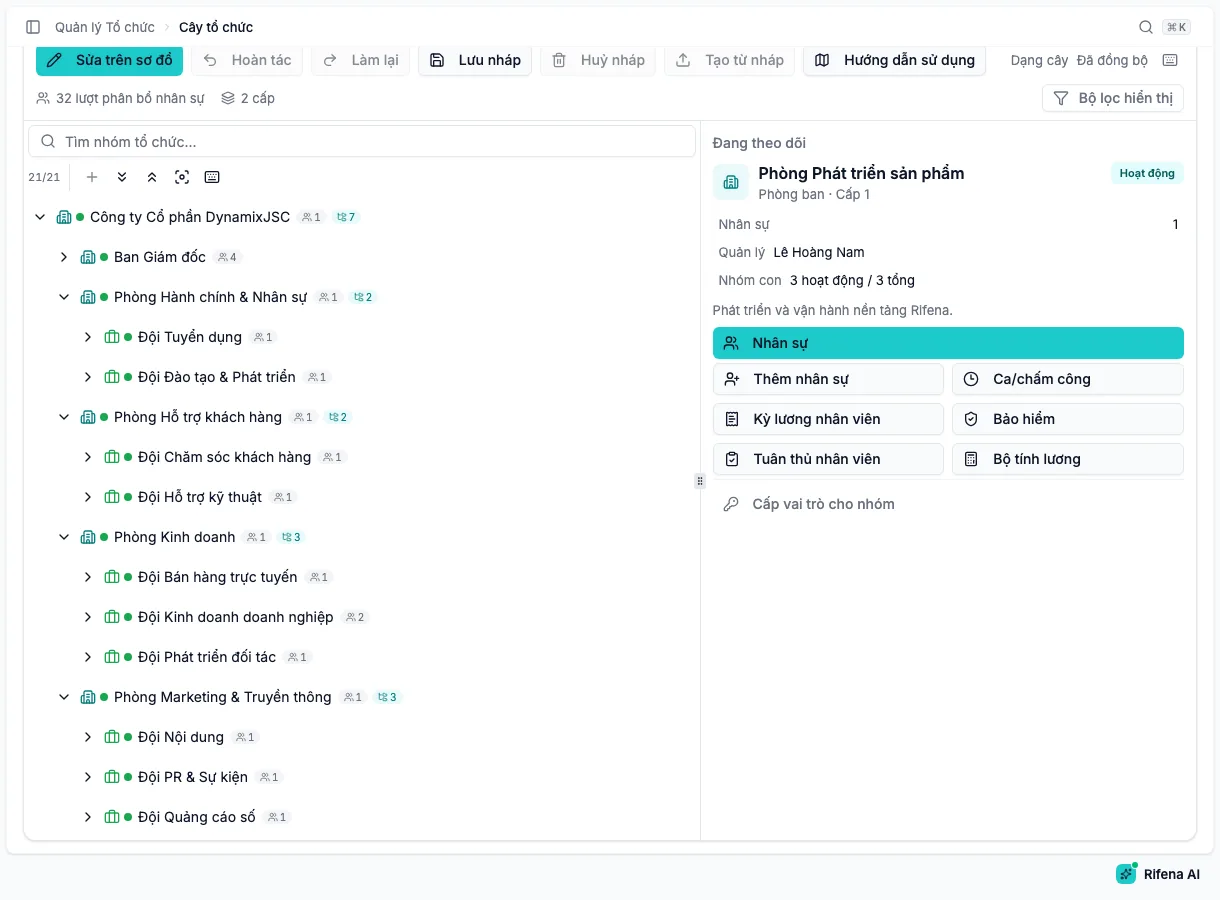
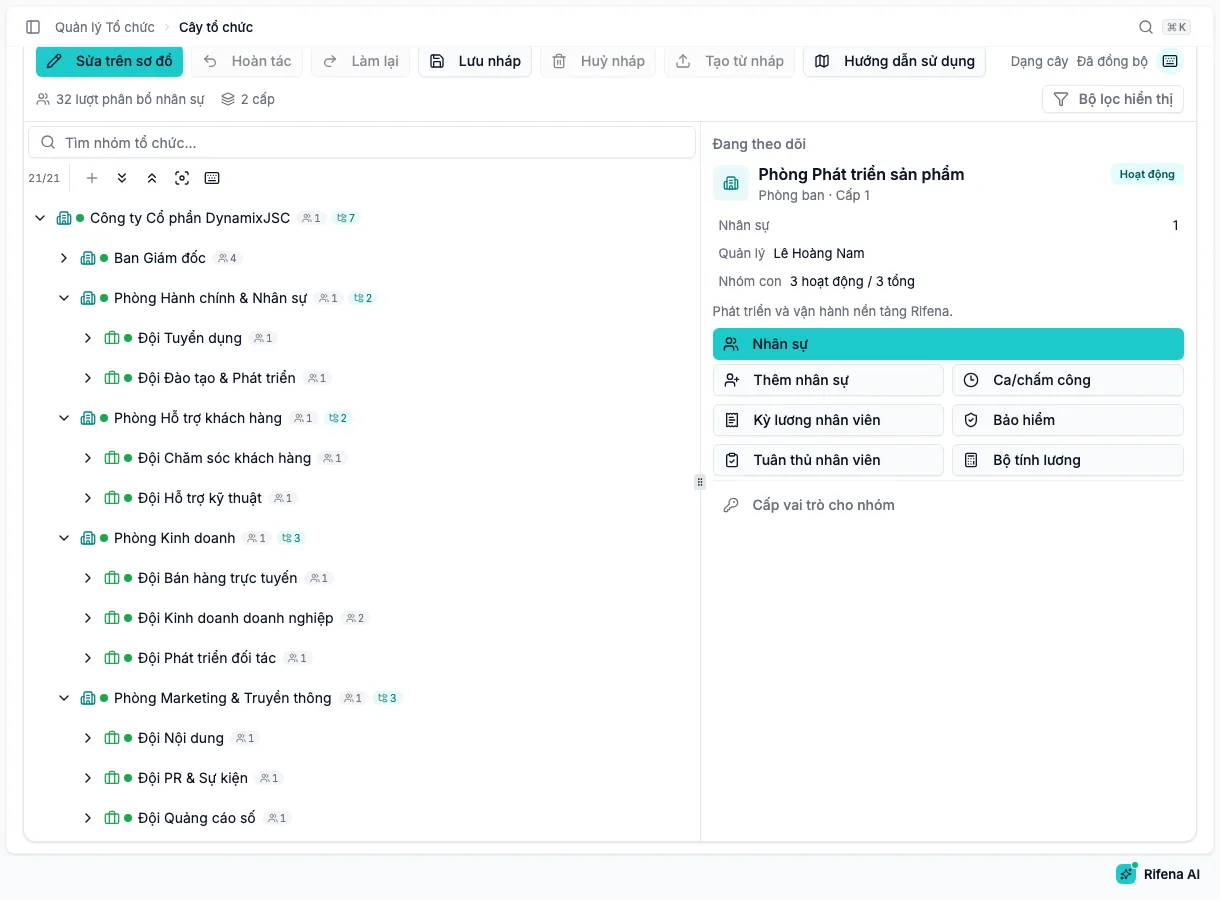
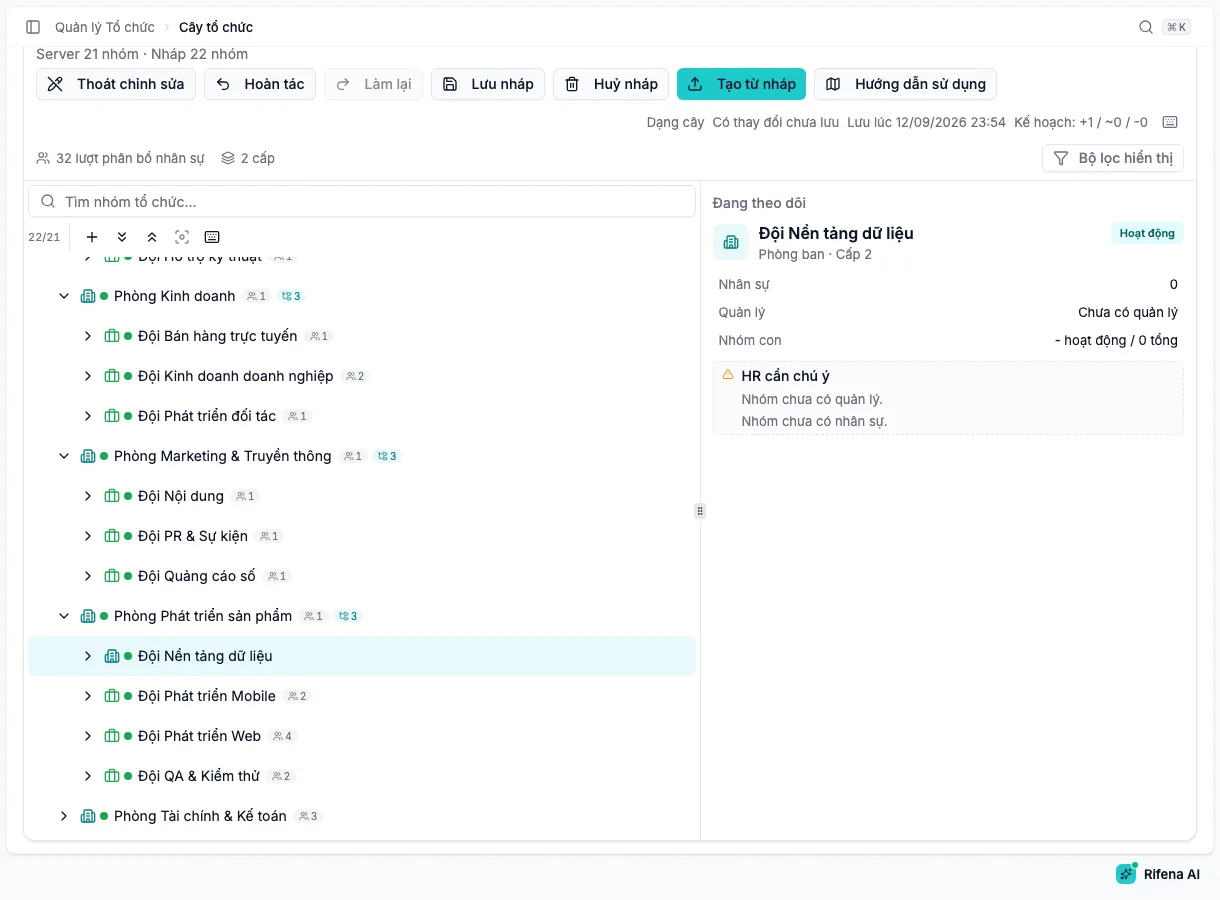
Tree lists groups by level with headcount and child count on every row. The toolbar has the Find organisation group box, buttons to add groups, Expand, Collapse, Focus chart and the shortcut panel. When a branch still has groups to load, a Load more groups button appears at the end of that branch.
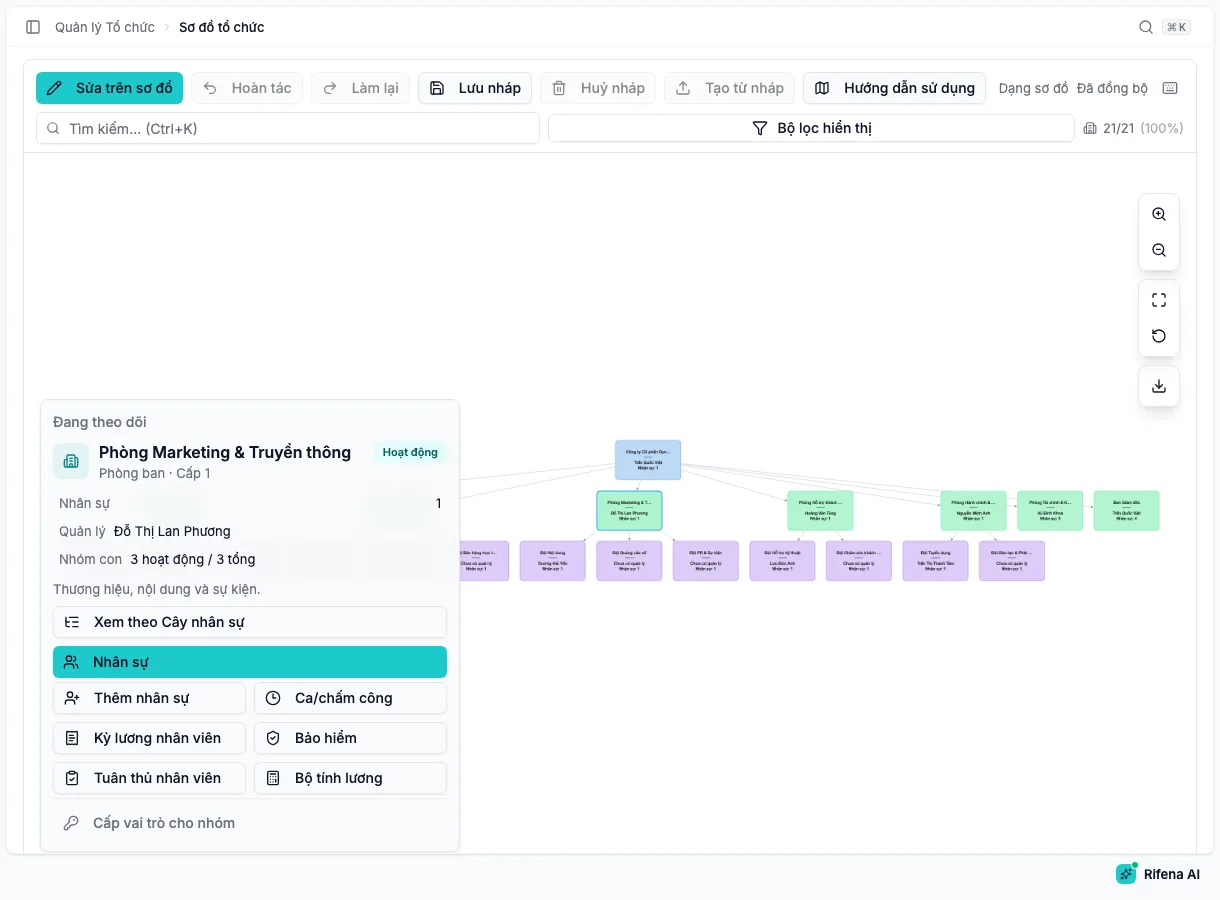
Chart draws the whole structure with zoom in, zoom out, Fit the whole chart, Reset layout and Download PNG. The counter in the corner shows how many groups are drawn. Large organisations load progressively with Load more on the chart.
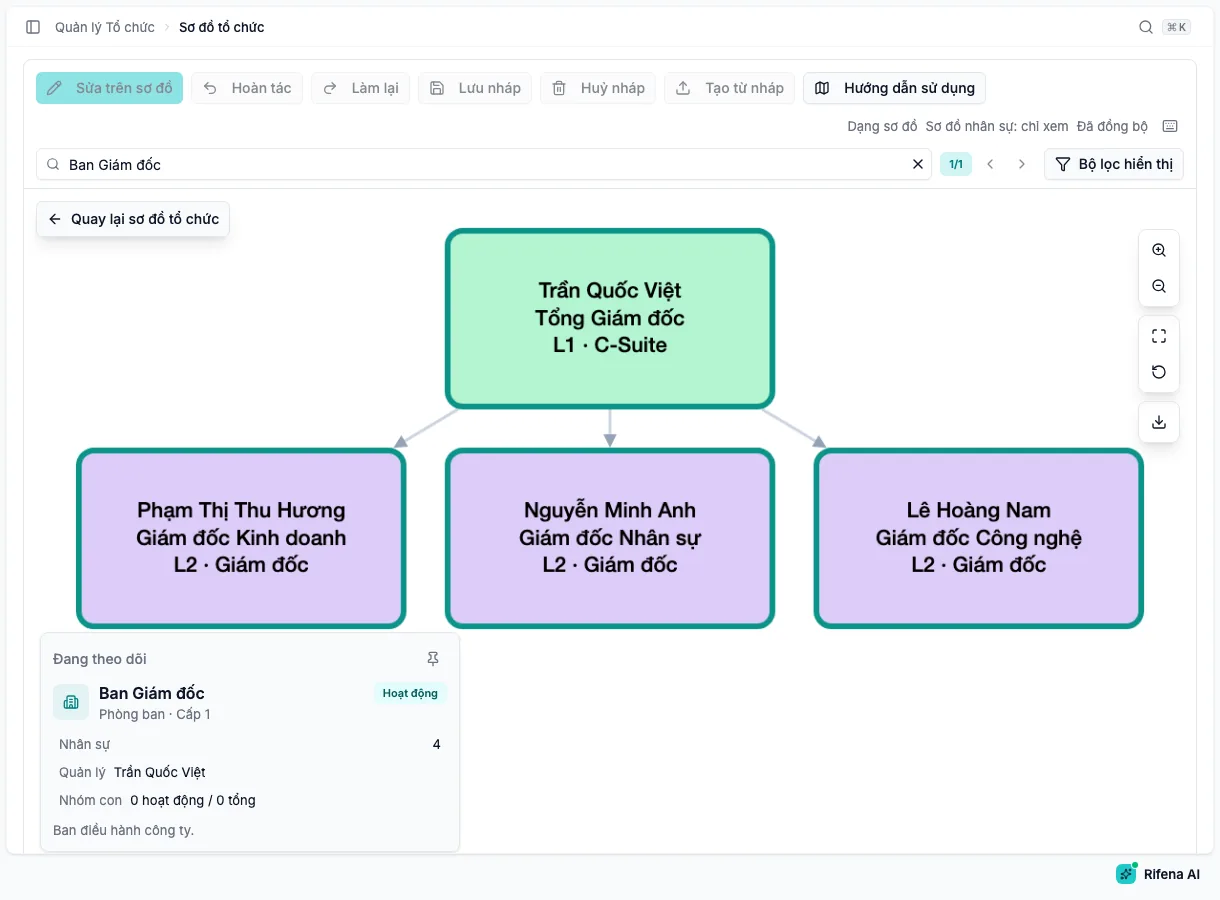
View as employee tree in the detail panel of the Chart view switches to a diagram of the group’s manager and members. This mode is read-only; go back to the organisation chart to change the structure.
Search, filters and shortcuts
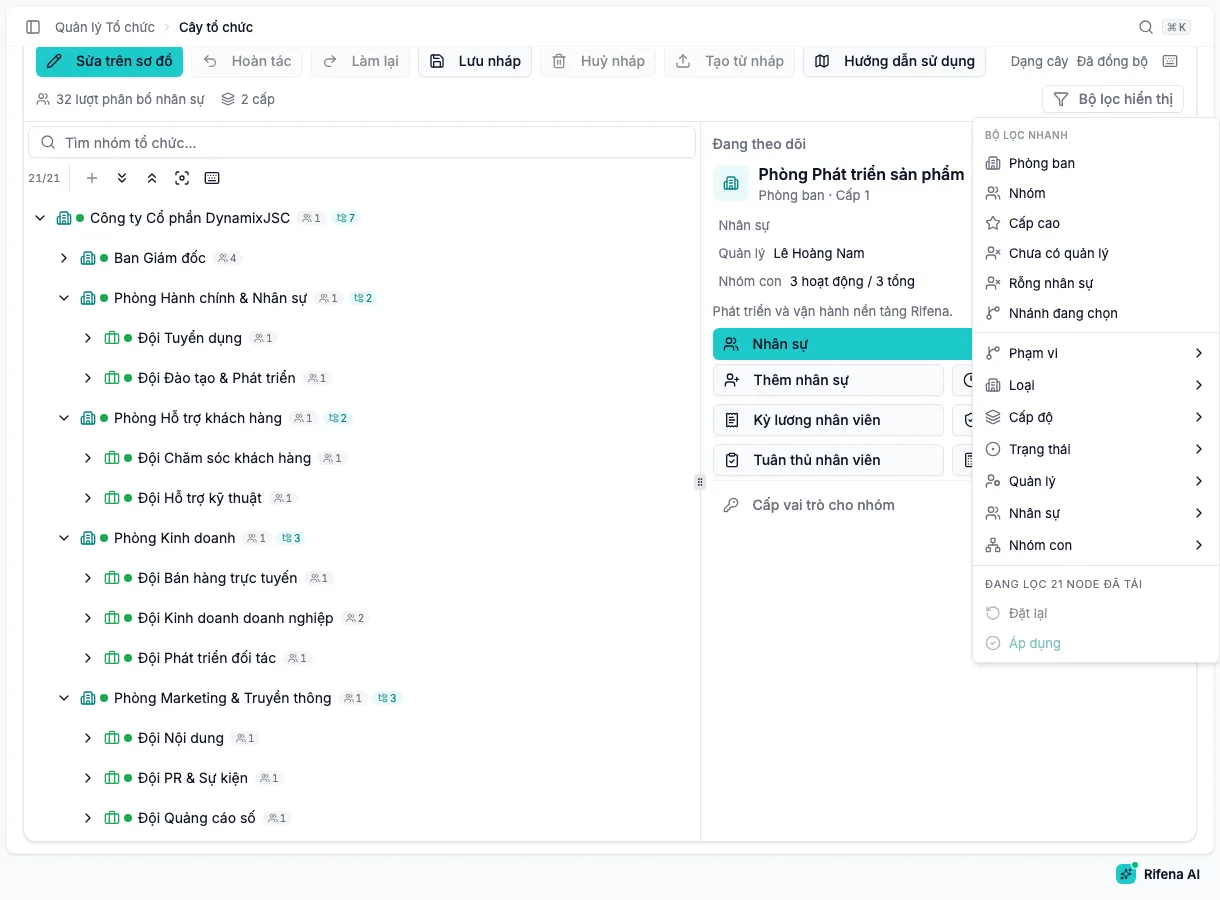
The search box scans the whole active organisation and takes you to the result on the chart. Display filters offers quick filters such as Missing manager, No employees, Inactive, Top level, and detailed criteria: type, status, level, manager, headcount, child groups and the selected branch. Compliance filters only inspect loaded groups, so load more before drawing conclusions in a large organisation.
| Shortcut | Effect |
|---|---|
| Ctrl/⌘ + Shift + E | Toggle edit mode |
| A, Shift + A | Add a child node, add a sibling node while editing |
| R, Delete | Rename, deactivate the selected unit |
| Ctrl/⌘ + Z, Ctrl/⌘ + Shift + Z | Undo, redo |
| Ctrl/⌘ + S, Ctrl/⌘ + Enter | Save draft, publish the draft |
| Ctrl/⌘ + Shift + D | Discard the draft |
| F, Alt + Shift + → / ← | Focus the selected node on the chart, expand or collapse the whole tree |
| Ctrl/⌘ + K | Open quick actions |
| Alt + 1 … Alt + 5 | Open people, timekeeping, insurance, group details, add an employee for the group |
Editing the structure on a draft
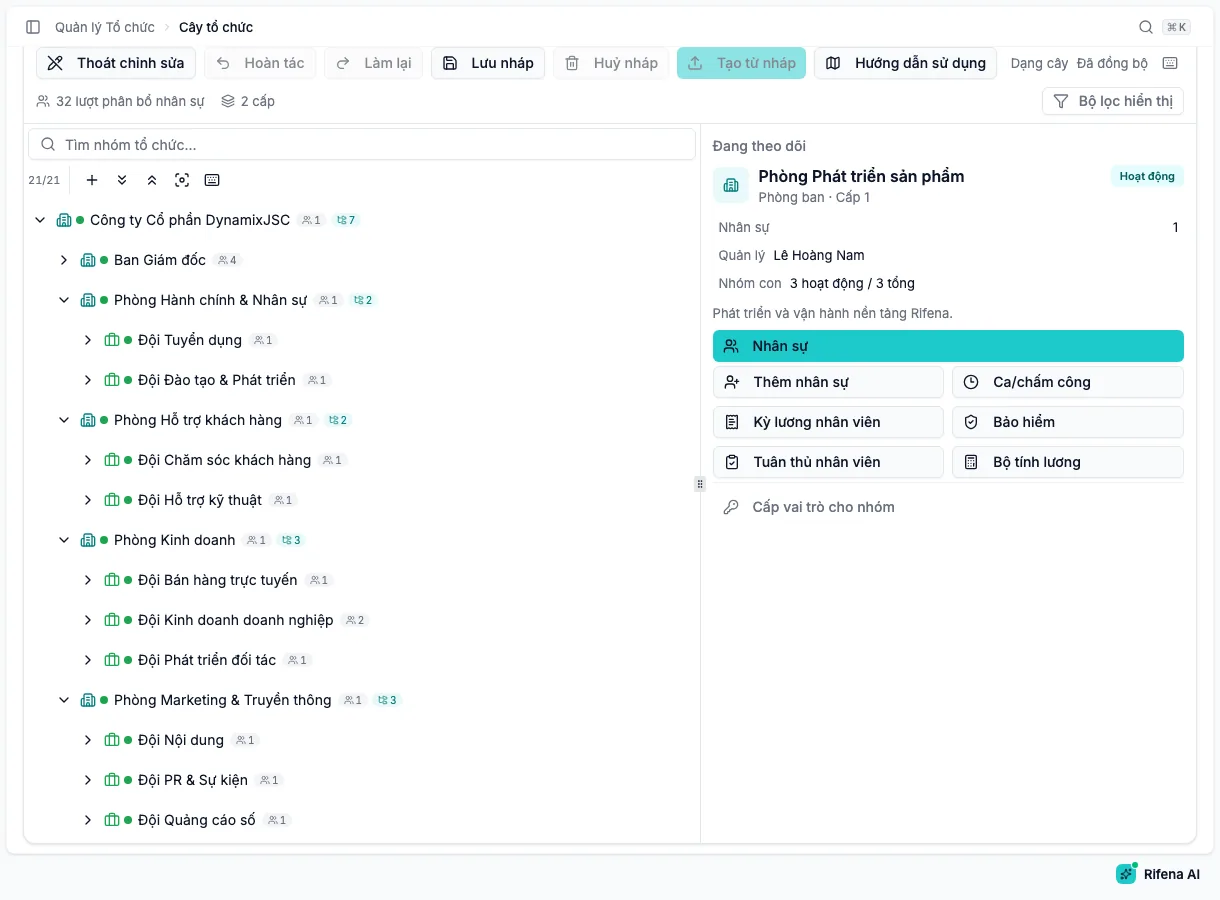
Choose Edit on chart to enter edit mode. Tree and chart share one draft: an edit in either appears in both. The toolbar state changes from Synced to Unsaved changes, with Plan: +create / ~update / −deactivate.
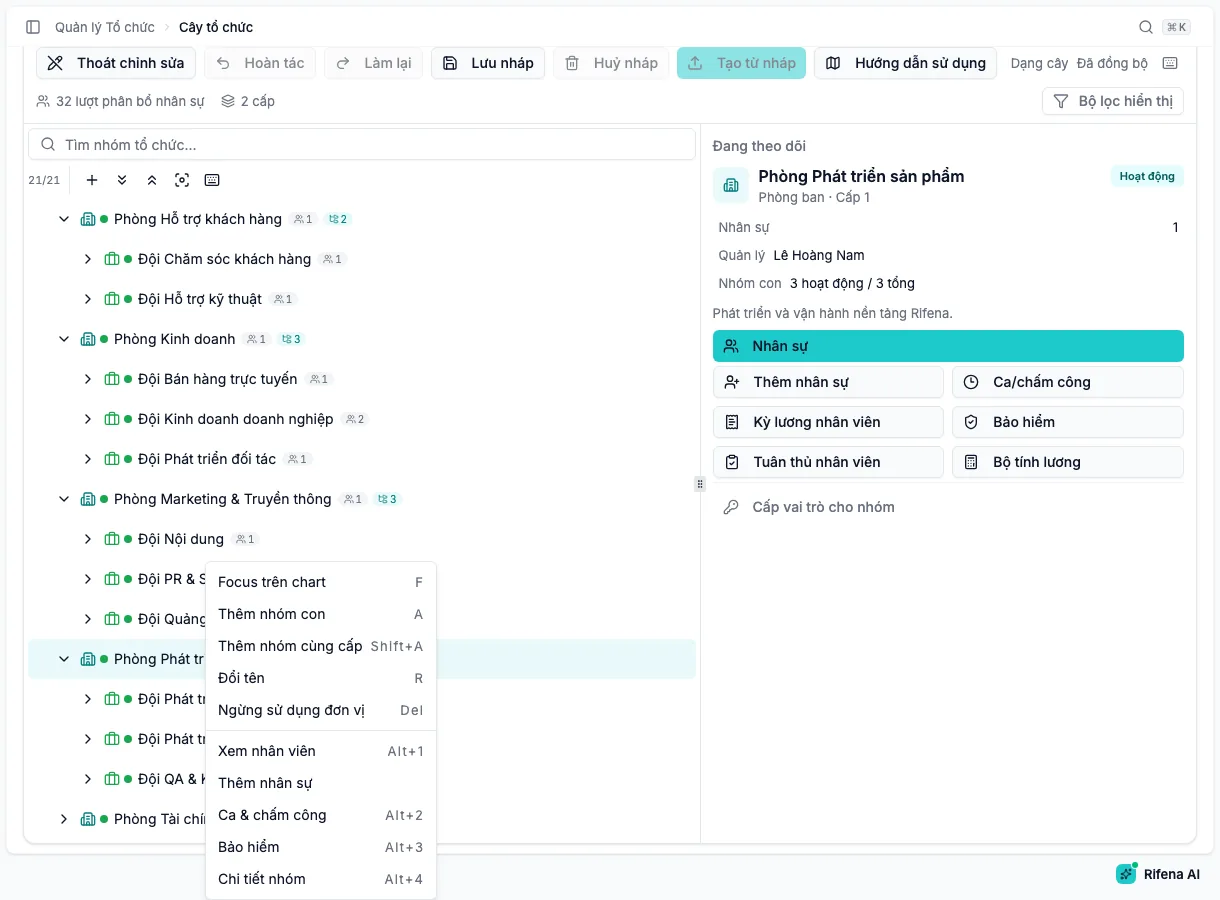
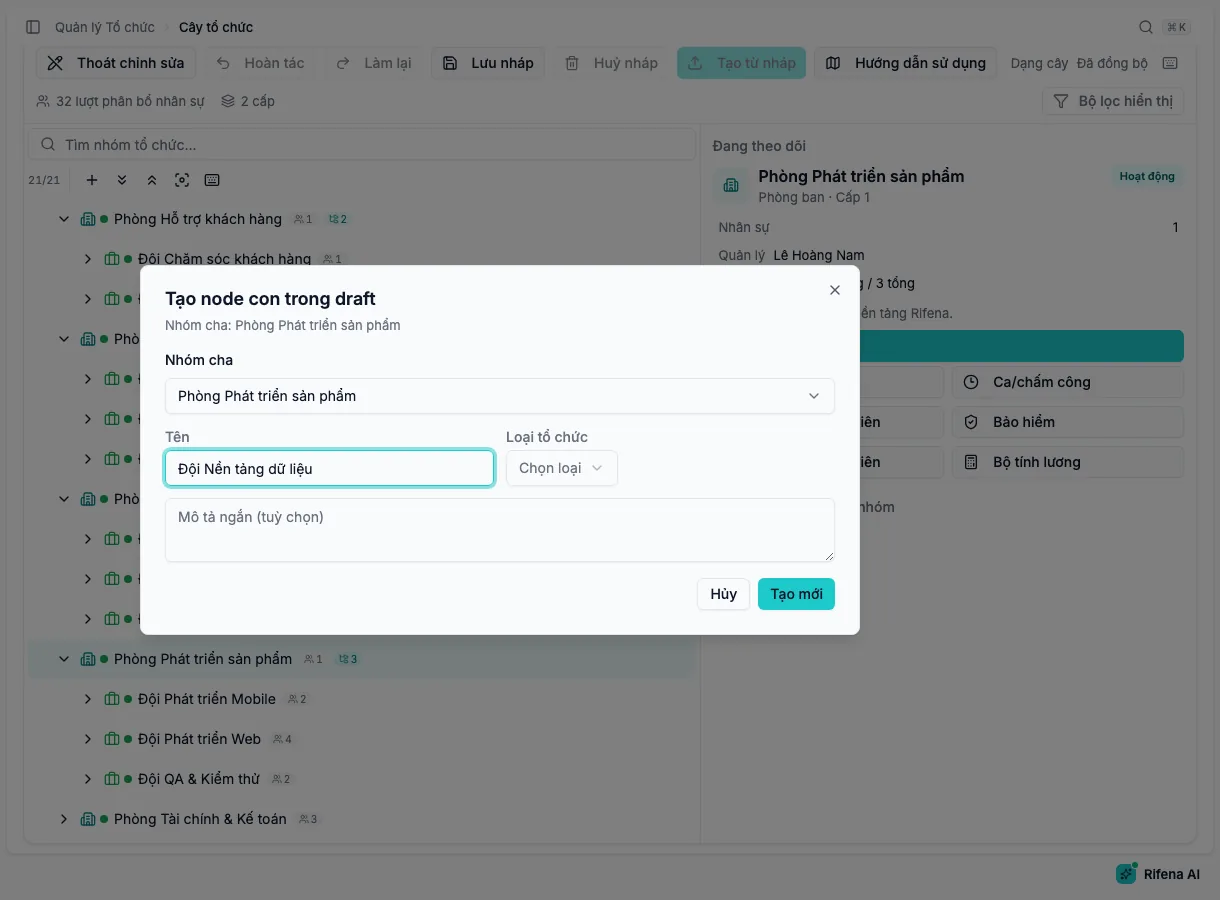
In edit mode you can:
- Add child group or Add sibling group from the context menu, A or Shift + A; enter the Name, pick the Organisation type and a short description.
- Rename a group directly in the tree.
- Deactivate unit: the group and all its children become inactive on publish; history and related configuration are kept.
- Drag a group to another parent and confirm in Confirm parent change.
- Undo and Redo each action; Save draft keeps the draft on your machine for later.
Loading an organisation template for a new company
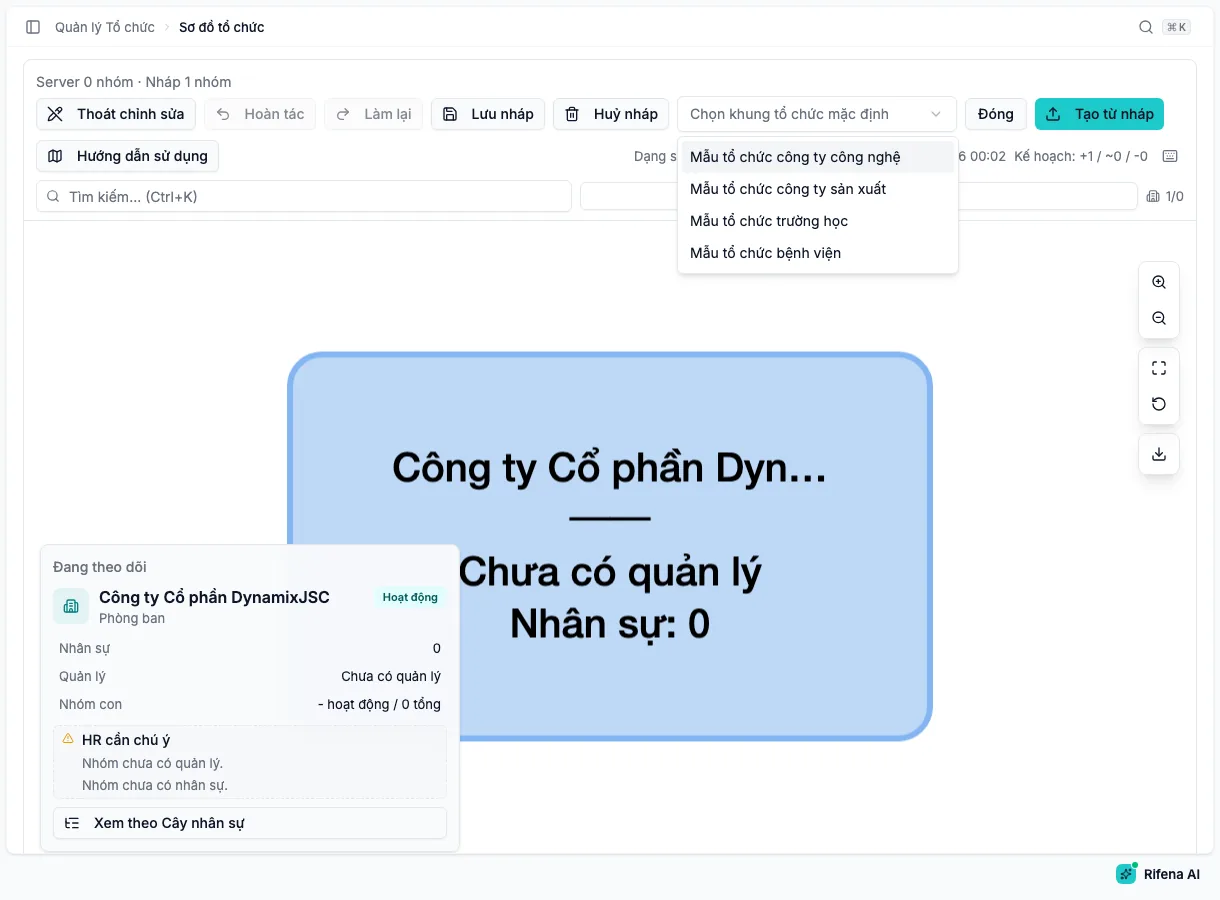
With an empty chart, choose Set up default organisation in edit mode and pick a template: technology company, manufacturer, school or hospital. Rifena loads it into the draft with a root node named after the organisation; edit freely before publishing. If the draft already has groups, a confirmation says the template will replace the current draft.
Discarding or publishing the draft
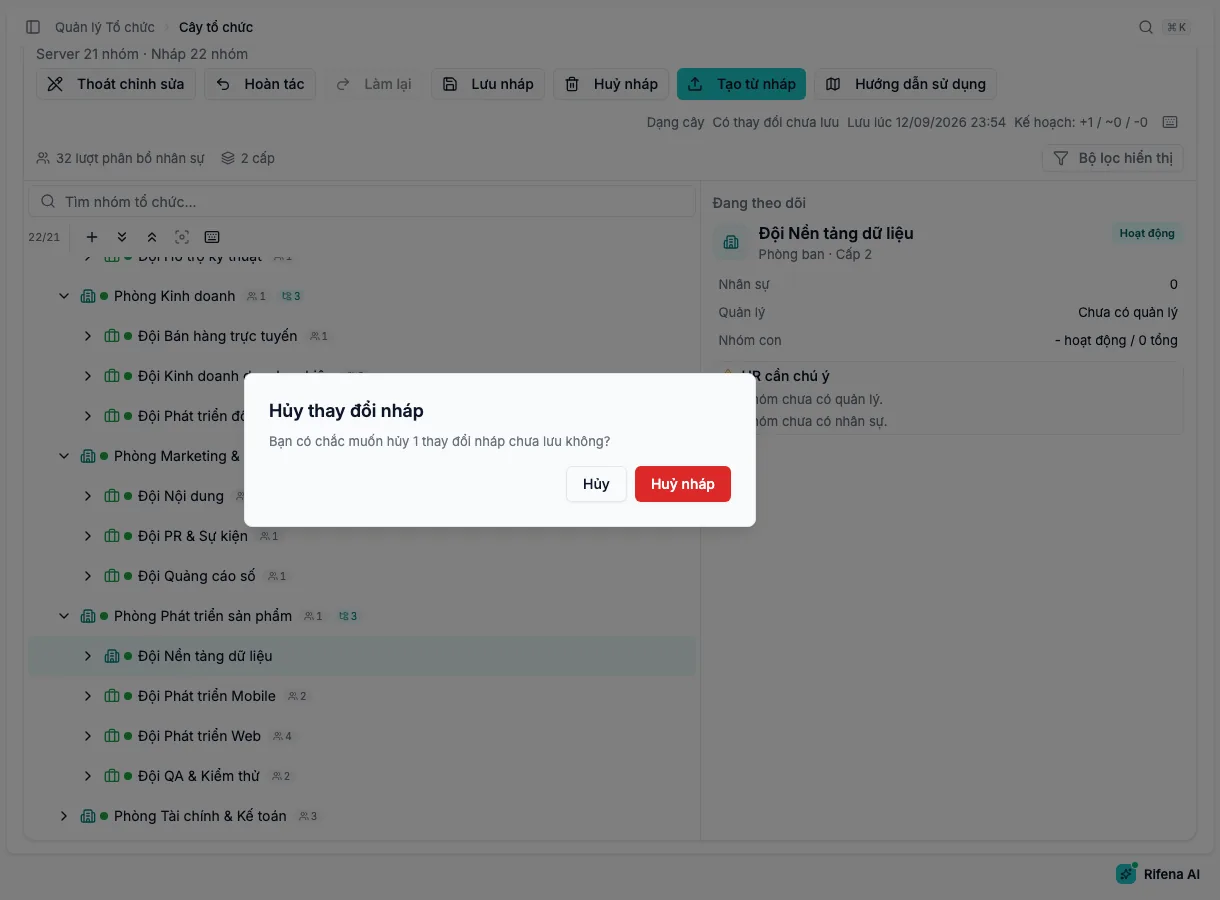
Discard draft drops every unpublished change after you confirm. Create from draft publishes the draft:
- Rifena validates the draft: names are required and not too long, no duplicate names under one parent, a root exists, no circular parents.
- Changes are sent in the order create, update, deactivate; the status bar shows each stage.
- On completion a notification reports how many groups were created, updated and deactivated; the state returns to Synced and temporary codes become real ones.
If a stage fails, Rifena rolls back the temporary changes it created and keeps your draft so you can fix it and retry. Deactivating a group that still has active employees is rejected; move or remove them first.
Group details and quick actions
The detail panel appears when you select a group: name, type, level, status, description, headcount, manager and loaded child count. HR attention flags a group without a manager, without employees or inactive. You can Pin details to keep the panel while selecting other groups.
| Button in the detail panel | Opens |
|---|---|
| People | The group’s employee list |
| Add employee | A new employee with this group as primary group |
| Shifts/timekeeping | The group’s timesheet |
| Employee payroll runs | Payroll runs filtered by the group |
| Insurance | Insurance of the group’s employees |
| Employee compliance | Violations and compliance by group |
| Payroll builder | The payroll template builder scoped to this group |
| Grant role for group | A role grant scoped to this group |
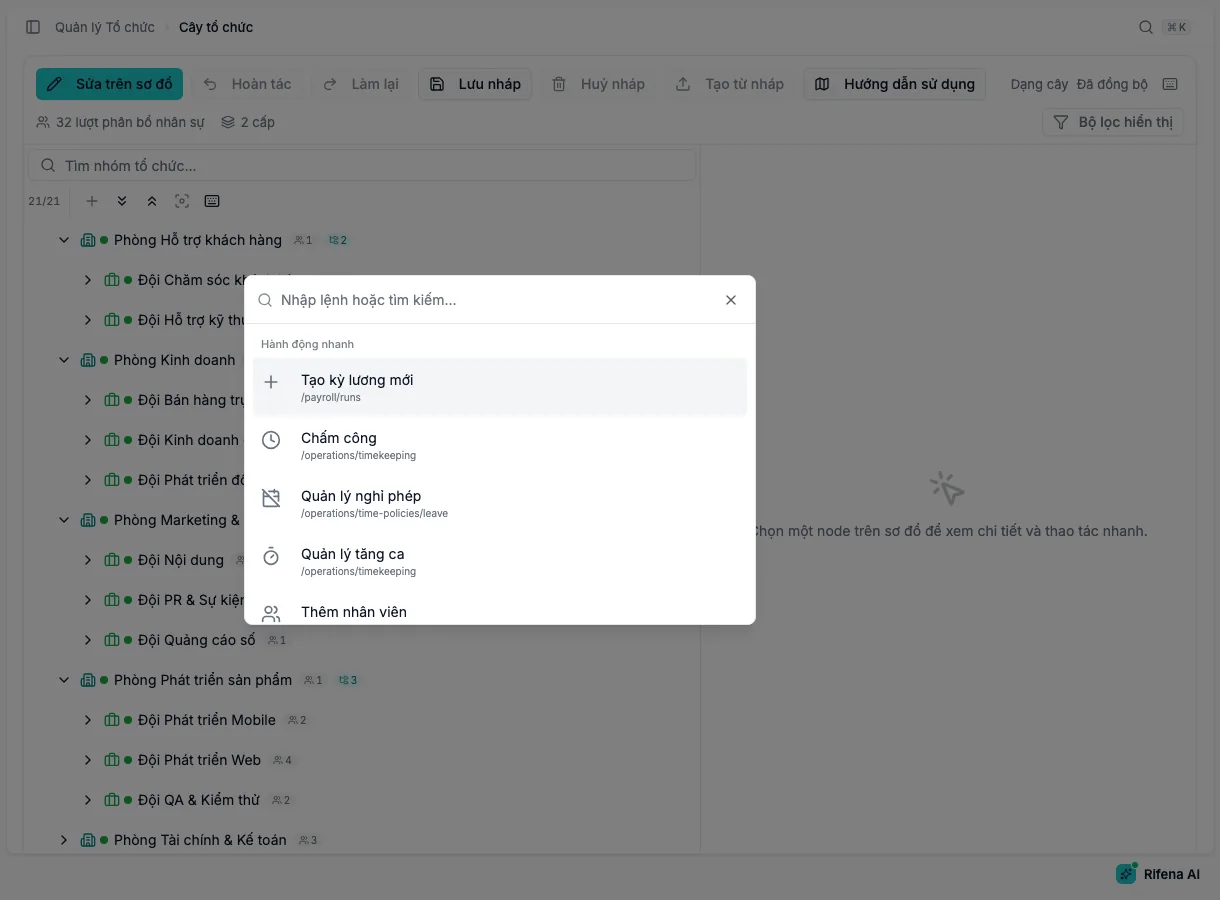
Group quick actions (Ctrl/⌘ + K) gathers those shortcuts in one search box; select several commands and Open selected to open them in working order.
What the tree drives
- Data scope: a role granted By group only sees people in the selected groups, and their children when subgroups are included. See Roles, data access and approvals.
- Approvers: approval workflows resolve Direct manager and Department head from the group’s manager. See Approval workflow builder.
- Primary and secondary groups: every employee has one primary group that sets the department, approvers and scope; adding someone to another group from their profile only creates a secondary membership. Changing the primary group goes through an HR event in Career changes.
- Payroll: a payroll template scoped By organisation applies to employees in the selected groups. See Payroll template builder.
- Positions are a separate catalogue linked to employees through their job title; manage them at Open positions.
Safety and limits
- There is no delete button: groups are deactivated to keep history, and only when no active employee remains.
- The draft stays on your machine until Create from draft; other people do not see draft changes.
- Temporary codes in the draft are negative numbers; do not reference them elsewhere before publishing.
- Managers and members are changed on the employee profile and through HR events, not on the tree.
- Drag-and-drop to a new parent is only enabled in edit mode and always asks for confirmation.
Next
- Organisation structure and positions for the first structure build.
- Management by group to operate by group after publishing.
- People and organisation issues when the tree, a group or a profile does not reflect a change.