

Guide · 7 steps
Run monthly attendance
At month end, HR often spends days reconciling attendance, explaining discrepancies and fixing records by hand before payroll can start. Rifena designed the attendance cycle so data is watched and handled during the month; closing the period is a confirmation, not a repair job.
This workflow moves an attendance period from Attendance open to Attendance closed. The hand-off is complete only when attendance, leave, overtime, and holiday work have been reviewed and no required request is still pending.
Role and access: the primary owner needs attendance review access for the intended employee scope; payroll-period closure is a separate permission.
Start with Open timekeeping. To close or reopen the period, use Open payroll-period settings. In Timekeeping, use Open timesheet, Open overtime, Open attendance summary, or Open timekeeping configuration for the task at hand.
Recommended sequence for each period
| Stage | Where to work | Result to confirm |
|---|---|---|
| Prepare | Operations → Timekeeping → Open schedules and shifts / Flexible | Employees have the intended work schedule |
| Monitor | Timekeeping → Today, then Timesheet → Viewing: Timesheet | Missing or unusual clock events are identified |
| Resolve | Timesheet → Viewing: Timesheets / Overtime and Settings → Holiday work | Corrections and decisions are complete |
| Reconcile | Timesheet → Viewing: Summary | Hours, overtime, and attendance totals are plausible |
| Close | System → Settings → Payroll periods | The period shows Attendance closed |
View period-preparation screens2 images
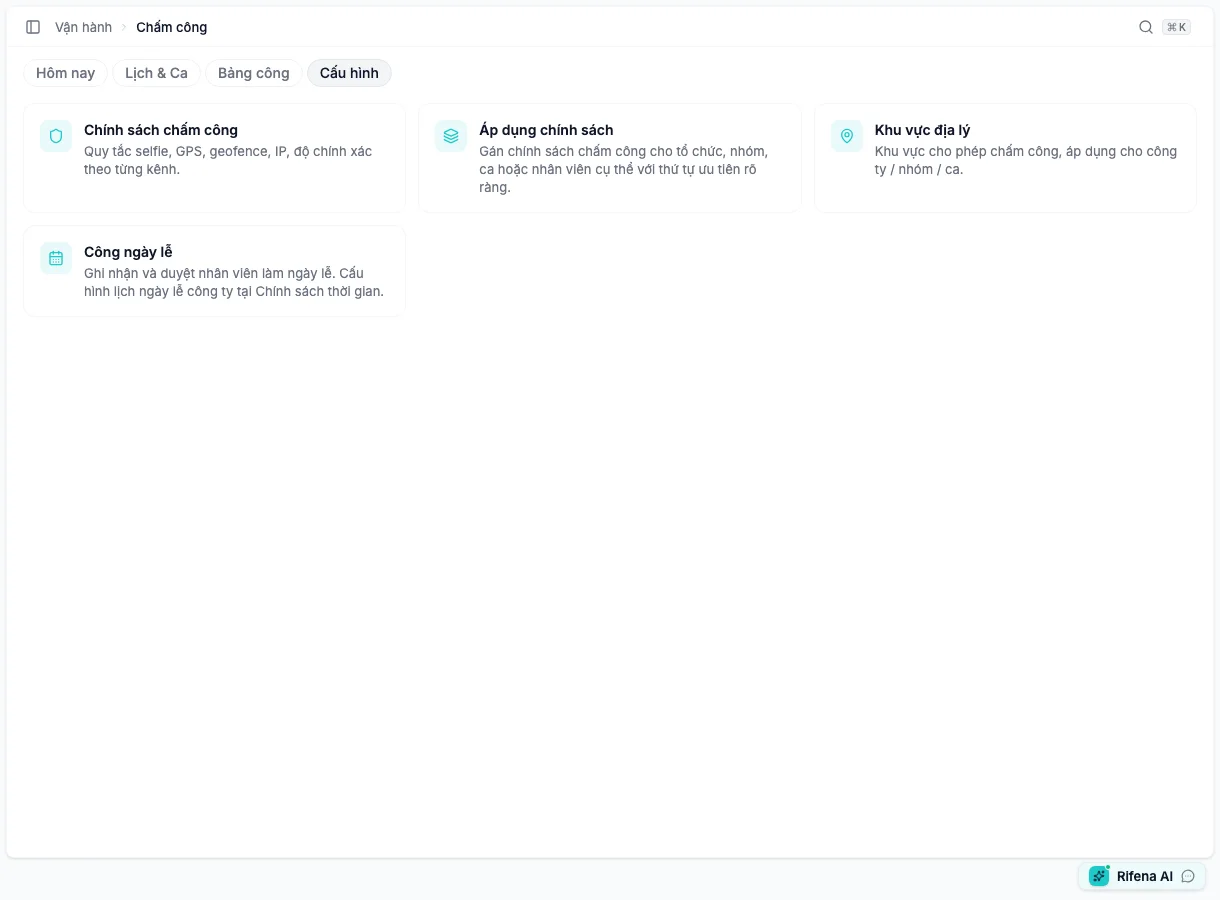
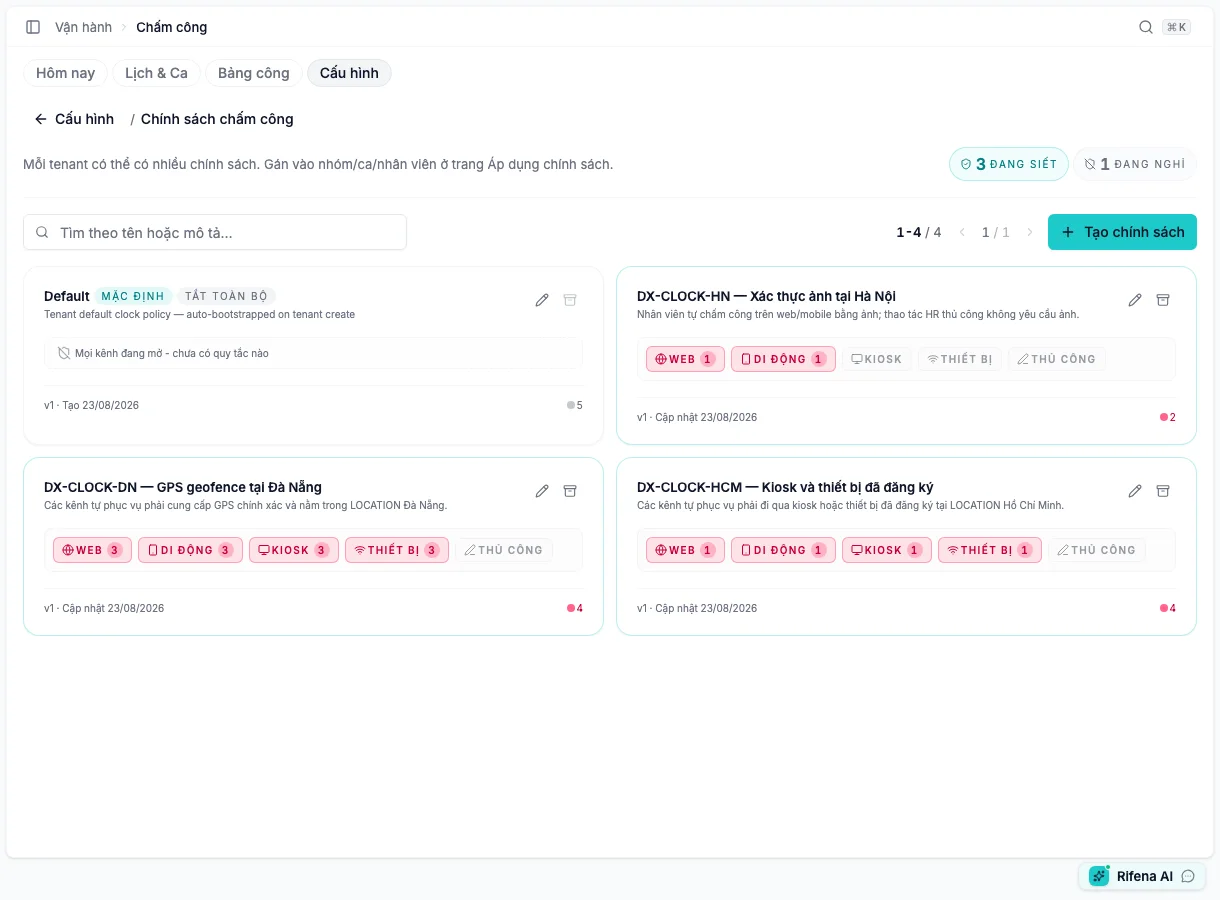
Do not edit a policy mid-period merely to unblock one event. First identify the effective policy, blocked channel, and supporting-data readiness. When a change is justified, keep the scope narrow and hand off its effective time explicitly.
Prepare work schedules
Open timekeeping and confirm the period, month, or date range before making changes.
- Under Schedule, keep Shifts selected and assign the correct shift and work schedule to each employee or group for the intended dates.
- Resolve employees without a shift, overlapping shifts, or mid-period schedule changes.
- For remote work, travel, or another approved location, switch to Open flexible work arrangements and create the appropriate work arrangement before the work date.
- Return to the schedule or timesheet and confirm the employee has the intended shift on the intended day.
This stage is complete when: no employee in scope is missing an expected work schedule.
Monitor attendance during the period
View the monitoring step1 image
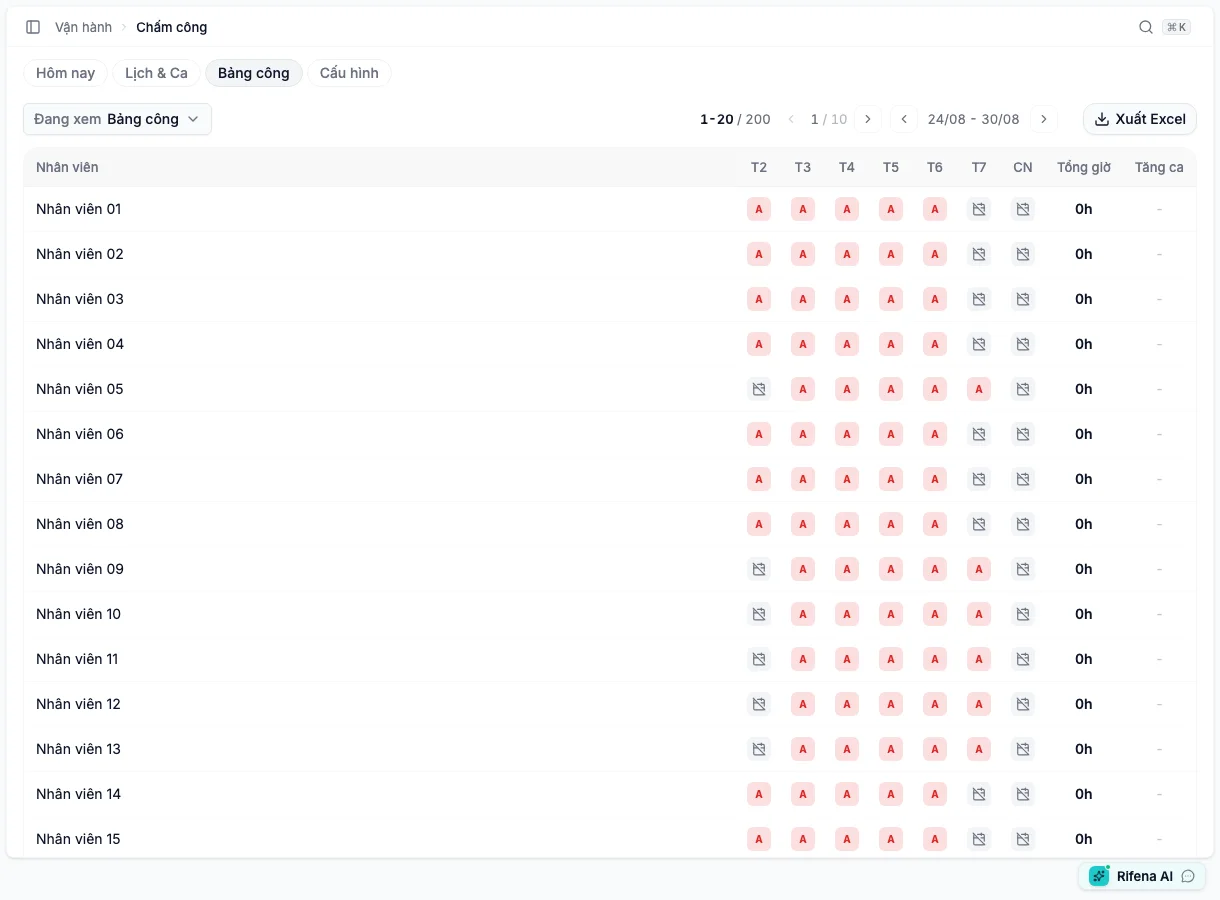
Do not wait until period end to find exceptions. Daily, or at the organisation’s agreed operating cadence:
- Open Today for clock-ins, clock-outs, and unusual events.
- Open Timesheet with Viewing: Timesheets to find a missing checkout, a fully missing day, or hours that do not match the assigned shift.
- Confirm the facts with the employee or manager before editing.
- If a manual event is justified, use the action offered by the screen and record a specific reason.
Correct a timesheet
After the correct time has been verified:
- In Timesheets, select the employee and date.
- Choose Adjust timesheet, Manual check-in, or Manual checkout for the visible issue.
- Enter the confirmed time and a clear Correction reason. Avoid a generic note such as “fix attendance”.
- Save, reopen the day, and confirm the clock-in, checkout, and total hours.
If the action is blocked or the record does not change, do not create repeated events. Record the employee, date, and visible message, then use Attendance support.
Resolve related requests
View the Overtime step1 image
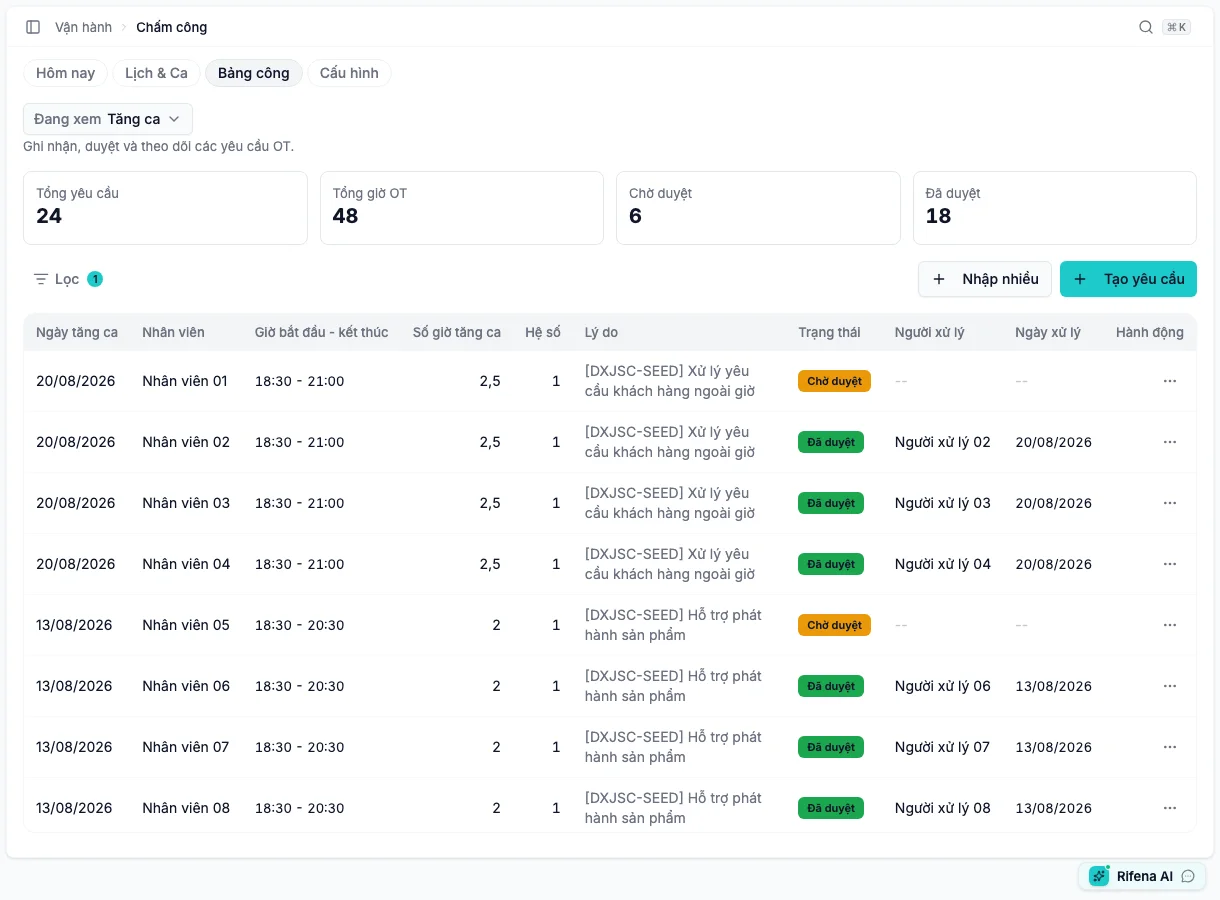
Before closing the period:
- Under Timesheet, switch Viewing to Open overtime and decide every request in scope unless there is an agreed reason for it to remain pending before period end.
- Under Settings → Holiday work, review worked holidays and all pending records.
- Confirm every leave request in the period is approved or rejected.
- Resolve pending shift changes so actual work is recorded against the correct schedule.
This stage is complete when: no leave, overtime, or holiday-work request in scope is waiting for a decision.
Reconcile before closing
View the Summary reconciliation step1 image
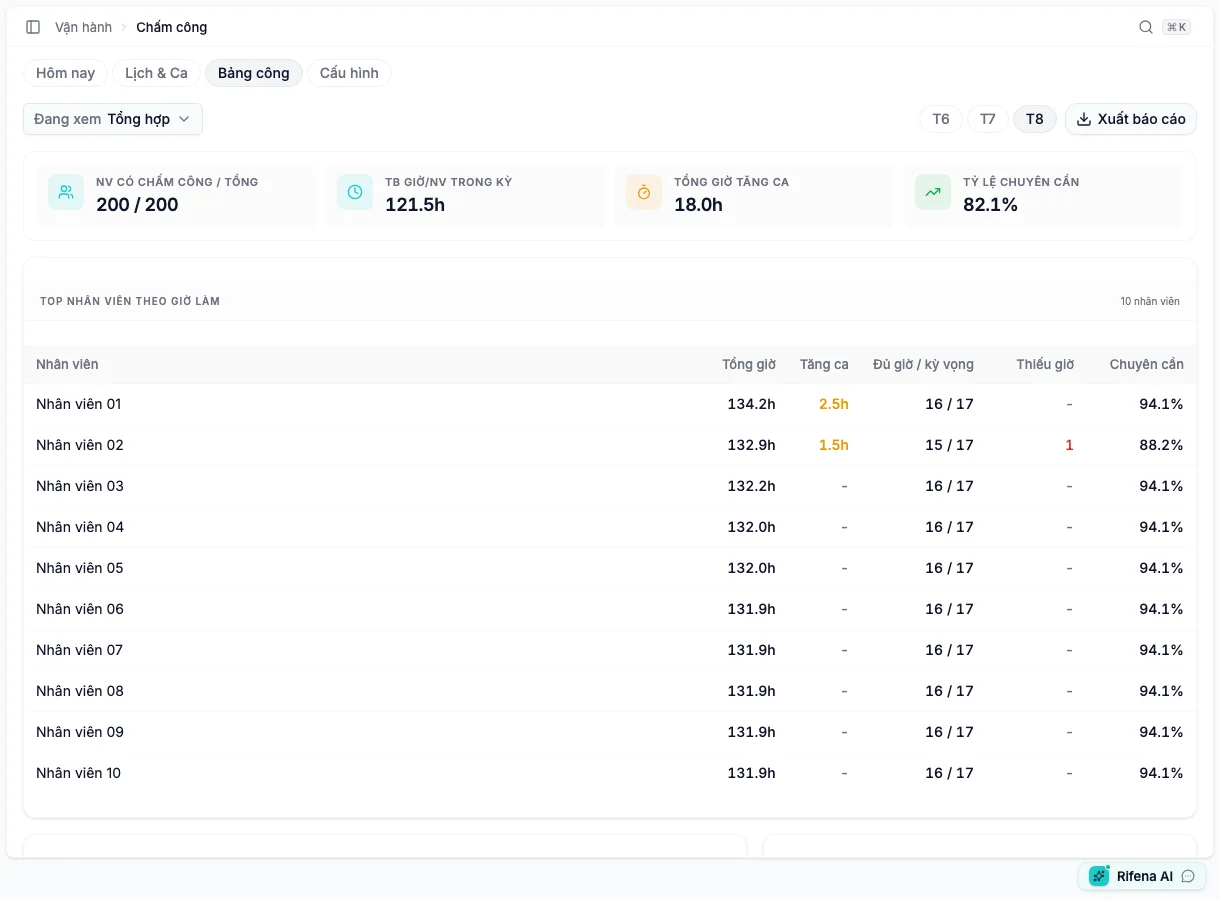
Under Timesheet, switch Viewing to Open attendance summary and review in this order:
- Does the employee count and date range match the intended period?
- Are total hours and overtime plausible for the organisation’s operation?
- Are starters, leavers, and mid-period schedule changes represented correctly?
- Does every missing, zero, or unusually high total have an explanation?
- For a representative sample, trace the work schedule through to each day’s timesheet.
If anything is wrong, correct it on the owning screen and return to Viewing: Summary again. Do not close the period because the organisation-wide total merely looks reasonable.
Close attendance
- Open System → Settings → Payroll periods.
- Select the intended Attendance open period.
- Choose Close attendance.
- Read the checks in Close period attendance.
- When every condition passes, choose Close attendance to confirm.
- Confirm the period now shows Attendance closed.
Rifena blocks closure when the period has not ended or eligible timesheets, leave, overtime, or holiday-work records remain incomplete. The dialog identifies the group that needs attention. Resolve that group and close again.
Hand over to payroll
Give payroll at least:
- the closed period name;
- the date range;
- the closure time;
- any verified exceptions that still need attention during payroll review.
Payroll can continue with Run monthly payroll.
Reopen attendance only for a verified error
Reopen a period only after identifying incorrect source data and understanding the effect on payroll.
- Open System → Settings → Payroll periods.
- Select the Attendance closed period and choose Reopen attendance.
- Read the warning and confirm only if this is the intended period.
- Correct attendance, leave, overtime, holiday work, or related compliance data.
- Reconcile Timesheet → Viewing: Summary, then choose Close attendance again.
Reopening can invalidate related payroll runs in Draft or Pending approval, which then need to be recreated after closure. Rifena blocks reopening when an affected payroll run is already Approved or Paid so confirmed history is not rewritten.
Period-end checklist
- Correct period and employee scope
- No unexplained missing attendance
- Every manual correction has a clear reason
- No pending leave, overtime, or holiday-work decision
- Starters, leavers, and schedule changes reviewed
- Summary reconciled against representative employees
- Period shows Attendance closed
- Payroll has received the hand-off